
Deployment with aaPanel

Calendar 👁️ 452

Installing aaPanel in English

This Docker-based tutorial for installing AnQiCMS is demonstrated using aaPanel (BT International Version).

If aaPanel is not installed on your server, follow the steps below to install it. If it's already installed, you can skip this section.

Download link for aaPanel:https://www.aapanel.com/new/download.html

Visit the download page, copy the appropriate installation command based on your requirements, log in to your server, paste the command, and execute the installation.
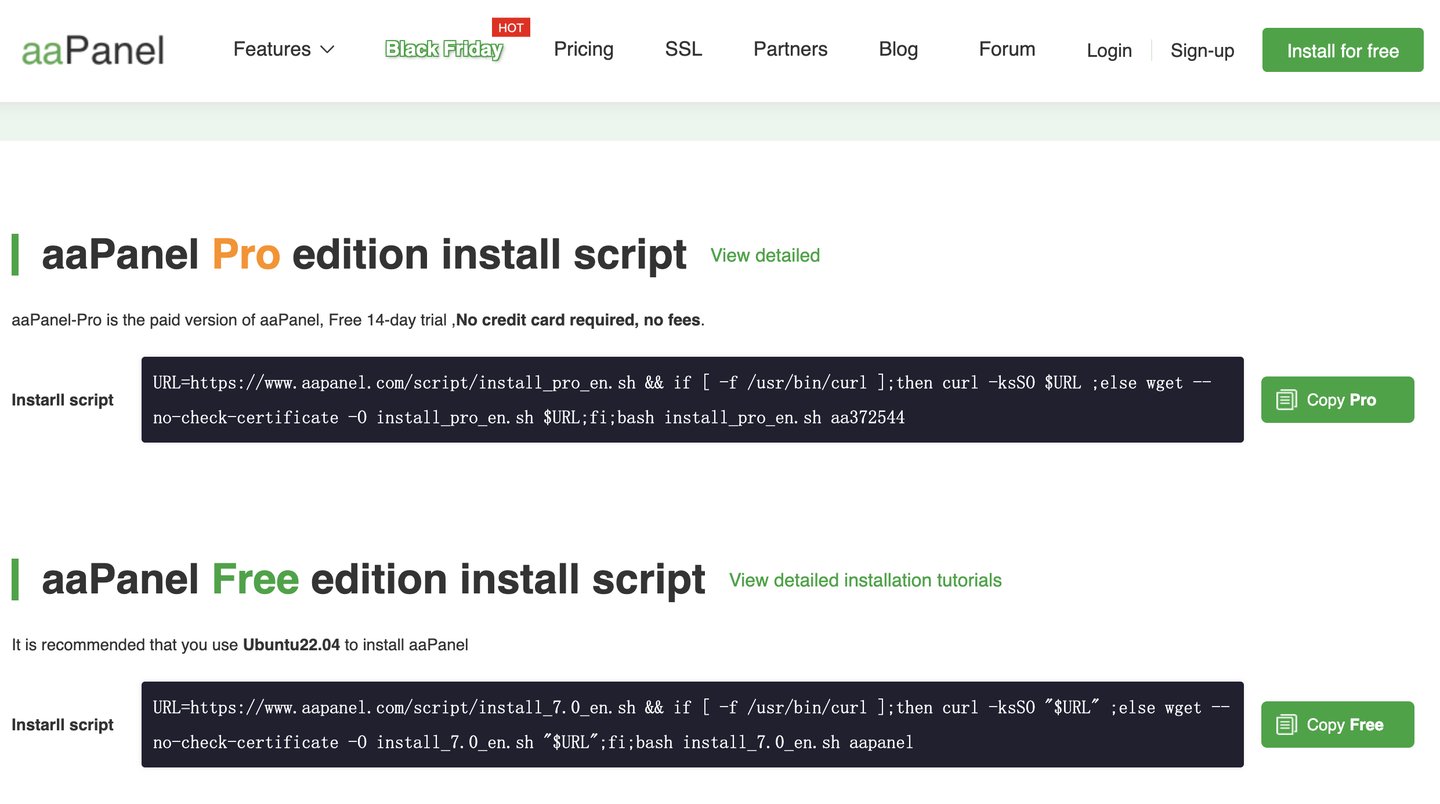


Besides command-line installation, you can also choose online installation via aaPanel. If you encounter any issues during the installation process, you can find customer support information on the download page to request assistance.

Installing AnQiCMS in English

If you have any questions about using Docker with aaPanel, visit theaaPanel forumfor help.
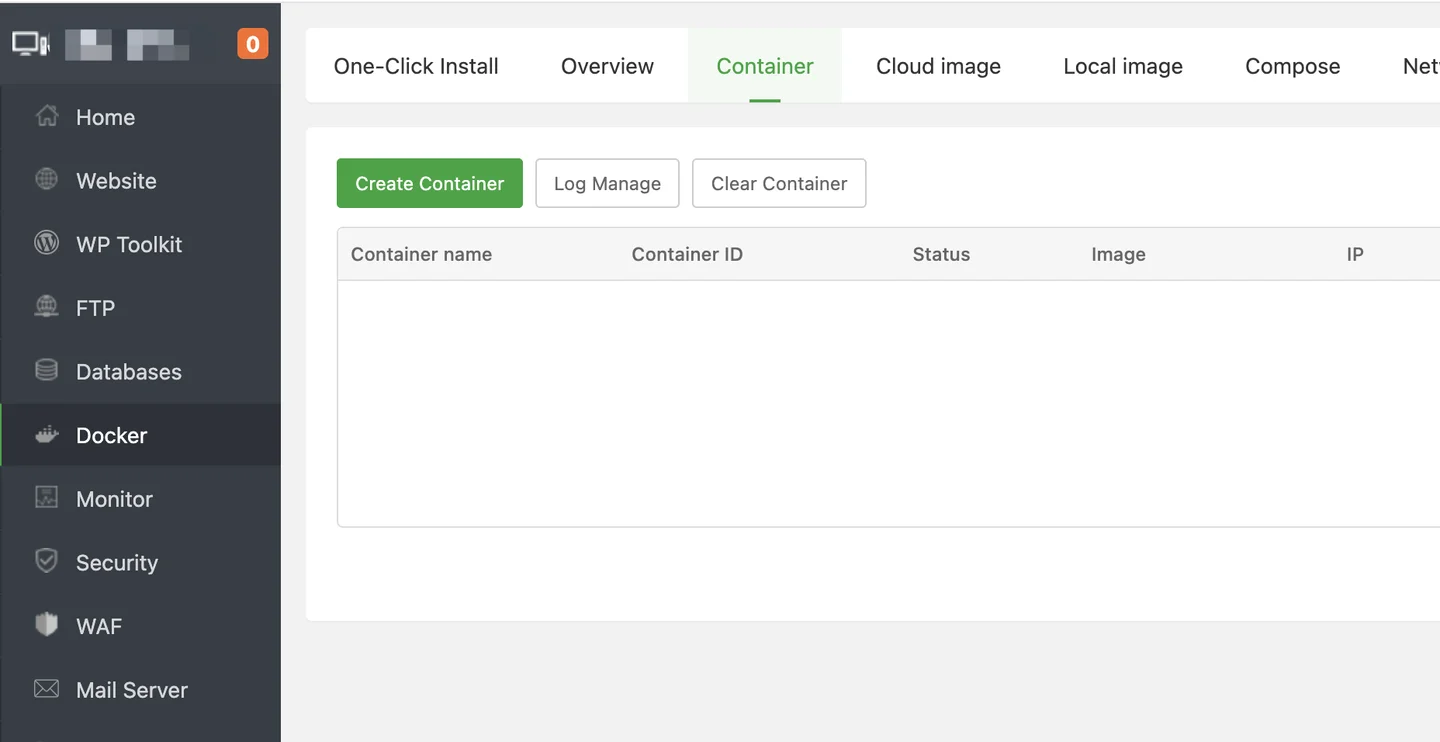


Once Docker is installed, search forAnQiCMSin theApp Store.
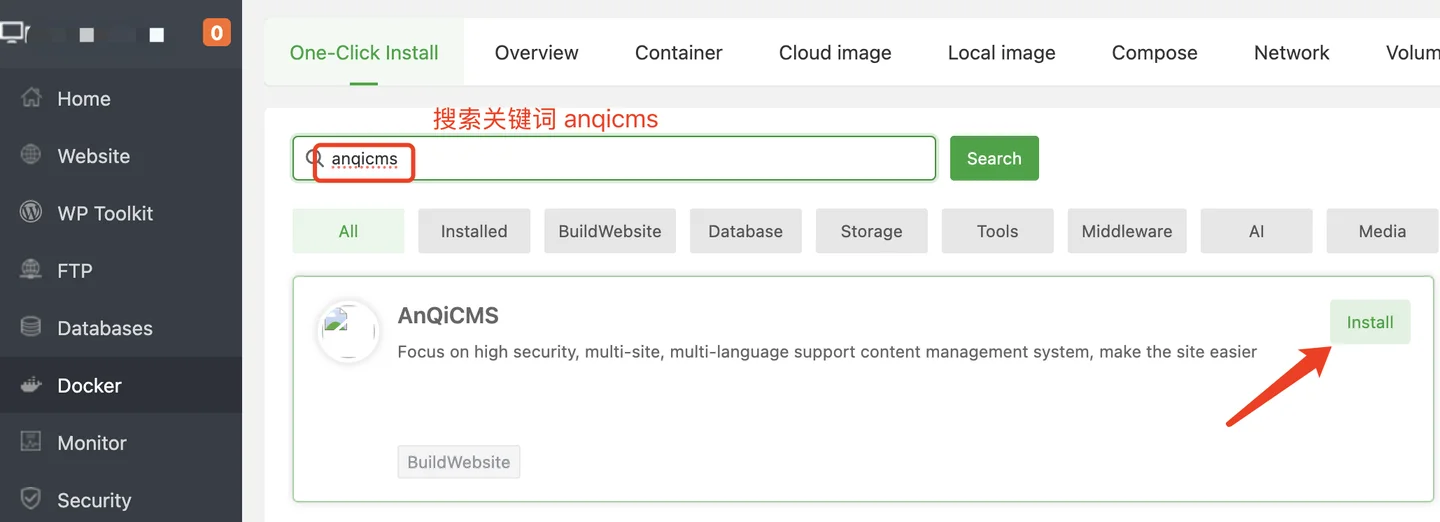

From the search results, click theInstallbutton to enter the installation interface.
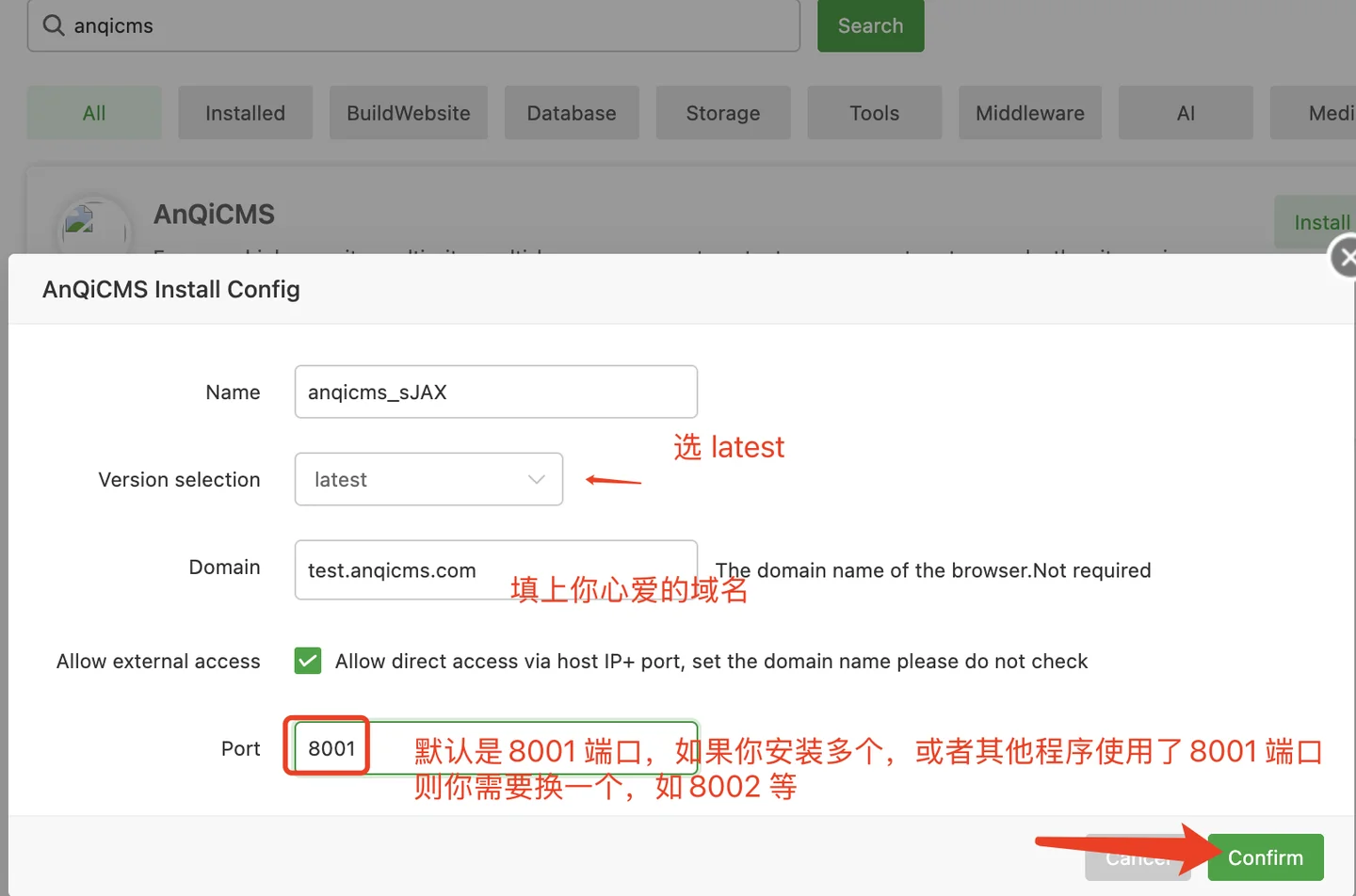


In the installation configuration, fill in the domain name in theDomainfield and set the port to8001, then clickConfirmto start the installation.

After clicking confirm, the installation won't complete instantly. Please wait patiently for 1–5 minutes until it finishes.

If an error occurs, follow the error message instructions to resolve the issue. Then click theRestartbutton to retry.

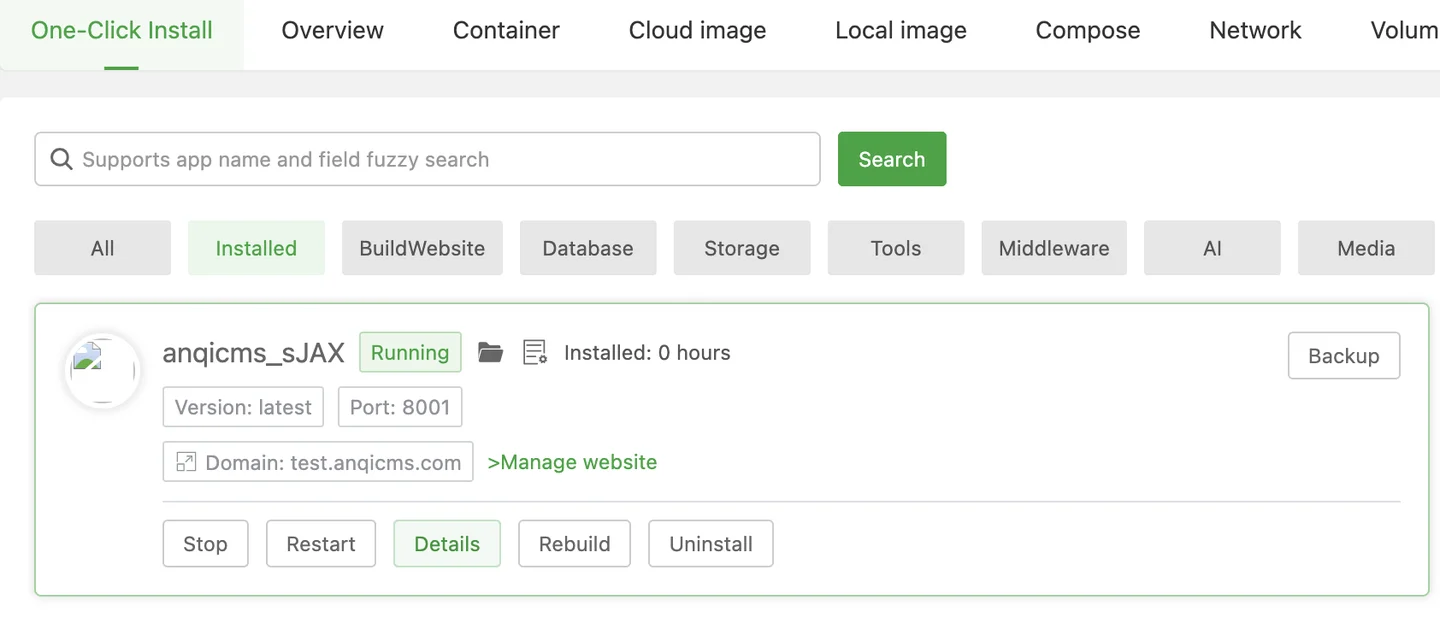
Once the Docker installation is configured, the result should look like the image below:


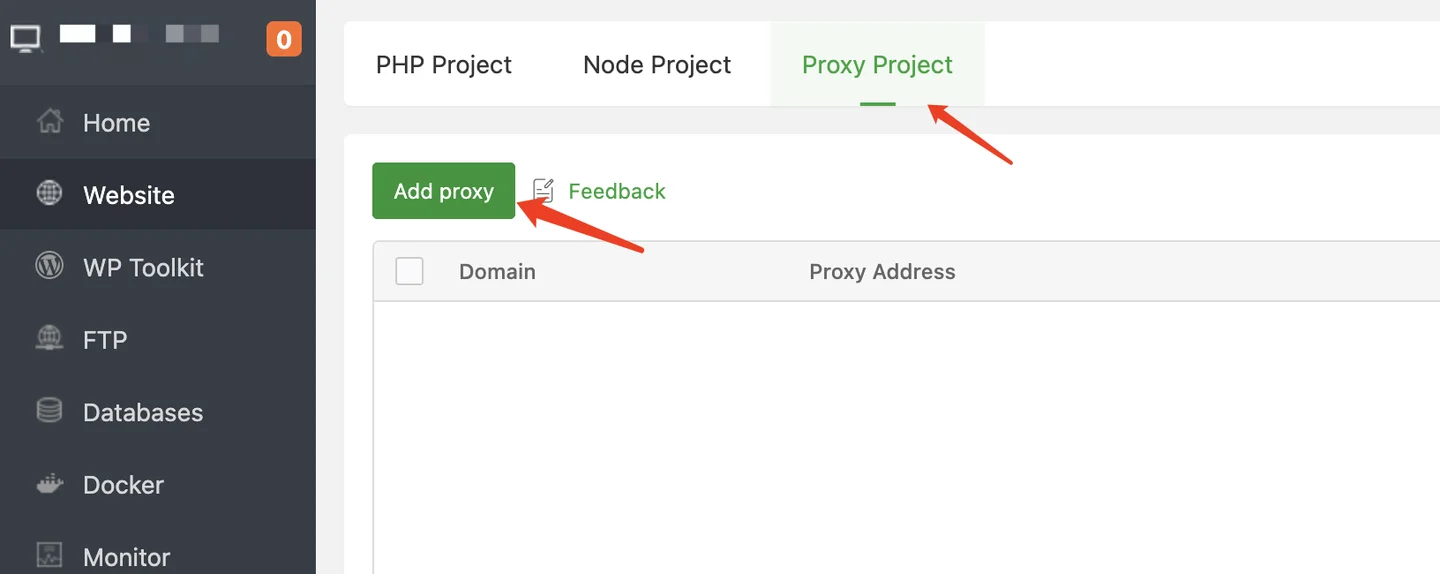
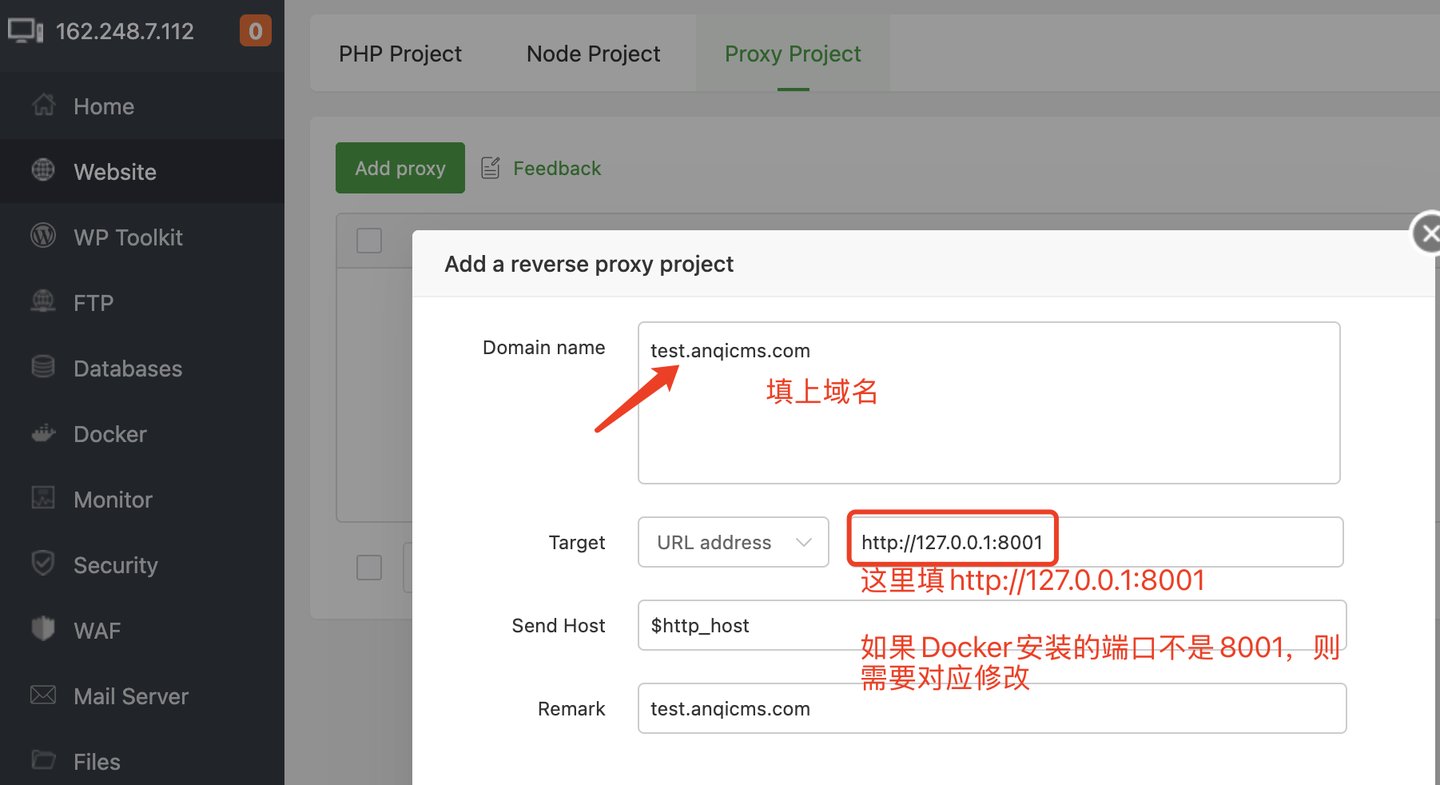
If the installation fails, you may need to manually configure a reverse proxy. Follow the instructions below to handle this:
Getting Started with the Website

By default, the website is pre-installed, and default credentials are provided.

Default Username: admin
Default Password: 123456
Admin Access URL: your-domain/system/
For example, if your website ishttp://test.anqicms.com/, the admin access URL ishttp://test.anqicms.com/system/.

Open your browser and visit the domain you entered earlier with /system/, e.g., http://test.anqicms.com/system/. Once on the website management interface, update the default username and password, and you're ready to start using it.

Related articles

Security CMS multi-site installation tutorial

The previous tutorial showed how to install AnQi CMS using Baota's Docker.Read the address: https://en.anqicms.com/help/3628.html Below is an introduction to the Baota reverse proxy site feature and a tutorial on adding multiple Anqicms sites.Add Reverse Proxy Site in Baota Panel In the left menu of Baota Panel, select [ Websites ], on the website page, select [ Reverse Proxy ], and click [ Add Reverse Proxy ] to create a reverse proxy site.On the interface for adding reverse proxy sites, fill in the domain column with the new site's domain name

2024-11-15

TT panel Docker one-click deployment security CMS tutorial

Install Anqicms application using Docker After installation, search for anqicms in the app store Click the Install button in the search results, enter the installation interface In the installation configuration, enter port 8001 and click Confirm to install.Click OK and the installation will not be completed immediately. Please be patient and wait for 1-5 minutes until the installation is complete.After Docker installation and configuration is complete as shown in the figure below: Use reverse proxy to create a site Switch to the site on the Baota panel, and click the reverse proxy tab to prepare to add a reverse proxy site.Click to add proxy

2024-11-14

AnQICMS Installation Tutorial

AnQICMS installation tutorial supports the following operating systems: Windows 7, Windows 8, Windows 10, Windows 11, and various versions of Windows server.Windows XP is not tested for support on Ubuntu, Centos, Red Hat, Debian, and other X86-based Linux versions.

2022-05-31

1Panel Install AnqiCMS Tutorial

The installation of 1Panel The download address of 1Panel is: https://1panel.cn/ Please install according to the installation instructions on the 1Panel official website.Below it is assumed that you have already installed 1Panel. The other required software: OpenResty, MySQL, please install them from the 1Panel app store.Install AnQi CMS application using Docker Click on the Containers tab in the left menu, select Containers, and click the Create Container button.In the pop-up interface, enter the name, fill

2024-11-21

AnQiCMS - Thank You for Your Support

AnQiCMS is an open source content management system. Every donation you make is a source of motivation for us to continue iterating and serving users.

2026-04-16