
Sensitive word settings
Sensitive word settings
Sensitive word settings are used to maintain a unified sensitive word library for the entire site. When the submitted content matches the word library, it will be intercepted or replaced.
Entry Path
Top menu of the background → 'Settings' → 'Sensitive Word Setting'. Actual address:/system/setting/sensitiverequires administrative privileges(canAdmin)
Function description
The page provides a sensitive word input box, 'Sync Sensitive Word' operation, and a list of sensitive words. Sensitive words are maintained line by line, one per line.
Screenshot of the interface
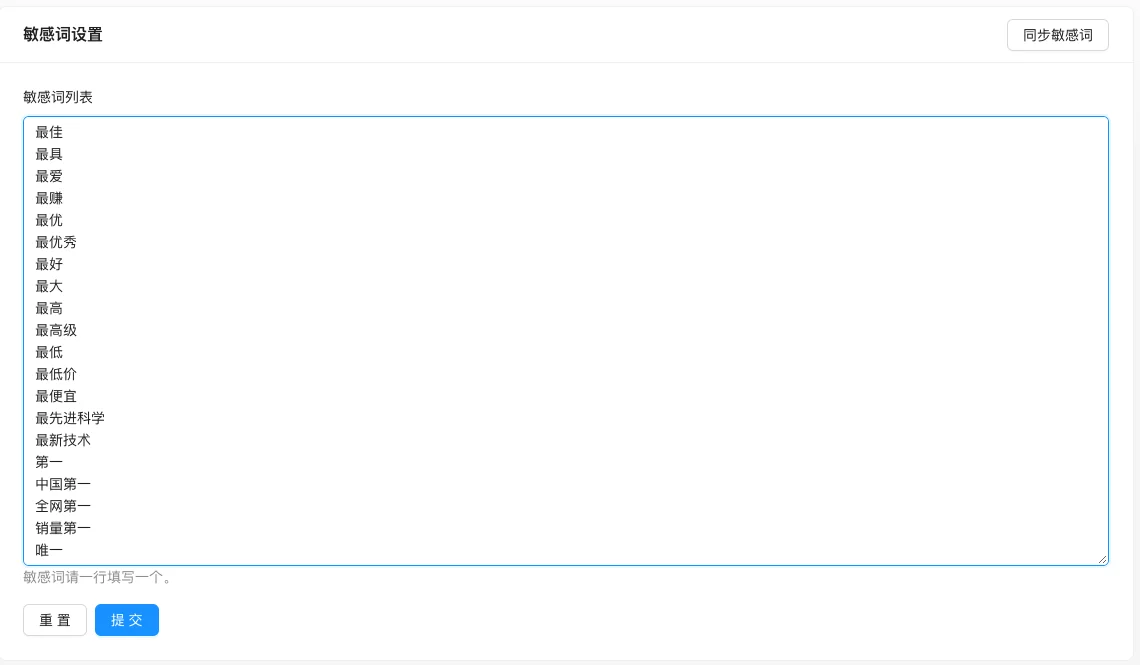
Setting item description
| Setting items | function | Value / Default | How to select / Fill in suggestions | Impact / Note |
|---|---|---|---|---|
| Sensitive word settings | Enter the words that need to be intercepted or replaced | Multi-line text, one word per line; the default value is not specified in the source code [source code] | Maintain advertisements and illegal words according to business risk; write synonyms line by line | Split into an array when submitted by line breaks; separated by commas will be considered as one word |
| Sync sensitive words | Pull the latest sensitive words from the official word library | Button, operation cannot be reversed | Execute when first configured or regularly updated; confirm whether to overwrite locally before execution | It will replace the local list(Including confirmation pop-up), custom words may be cleared [source code] |
| Sensitive word list | Displays the currently effective sensitive words | Read-only | Check whether the write is successful after saving | Used only for verification |
Detailed explanation of configuration items
Sync sensitive words
Condition for occurrence: Always display [实测].
Source code confirmation: Click to synchronize the latest sensitive words from the official website to the localand replaceCurrent list(sensitive.tsxConfirmation popup text)[Source code].
Recommended practice: First record the custom words; after synchronization, check the list, and if any custom words are missing, add them again.
Consequences of filling in incorrectly: The synchronization operation cannot be undone and may clear the custom word library - this is the most serious operation on this page.
Operation steps
- Go to「Settings → Sensitive Word Settings」.
- Enter sensitive words line by line in the input box.
- Click to save and write to the local word library.
- When updating the official word library, click「Sync Sensitive Words」, and confirm again in the confirmation popup.
Applicable scenarios and suggestions
- For communities,留言, and comment-heavy sites, it is recommended to maintain a list of common advertisements and prohibited words.
- Use it in conjunction with the comment sensitive word filtering in the 'Content Security Settings': the former is the site-wide word library, and the latter is an independent configuration for comment comments.
Points to note
- A large vocabulary library may affect the performance of content submission, only maintain the words that truly need to be intercepted.
- If the front-end still allows after modification, check whether the comment sensitive word filtering in the 'Content Security Settings' also needs to be synchronized configured.
- Do not add normal business vocabulary to the vocabulary library, otherwise it will hurt normal content.