
TDK Setting
TDK Setting
TDK settings are used to configure the title, keywords, description of the website's homepage, as well as the connector used in the SEO link.
Entry Path
Backstage top menu →「Settings」→「TDK Settings」。Actual address:/system/setting/tdkrequires administrative privileges(canAdmin)
Function description
Home TDK Only affects the home page<title>/<meta name="keywords">/<meta name="description">. The TDK of documents, categories, and other pages is maintained by their respective content.
Screenshot of the interface
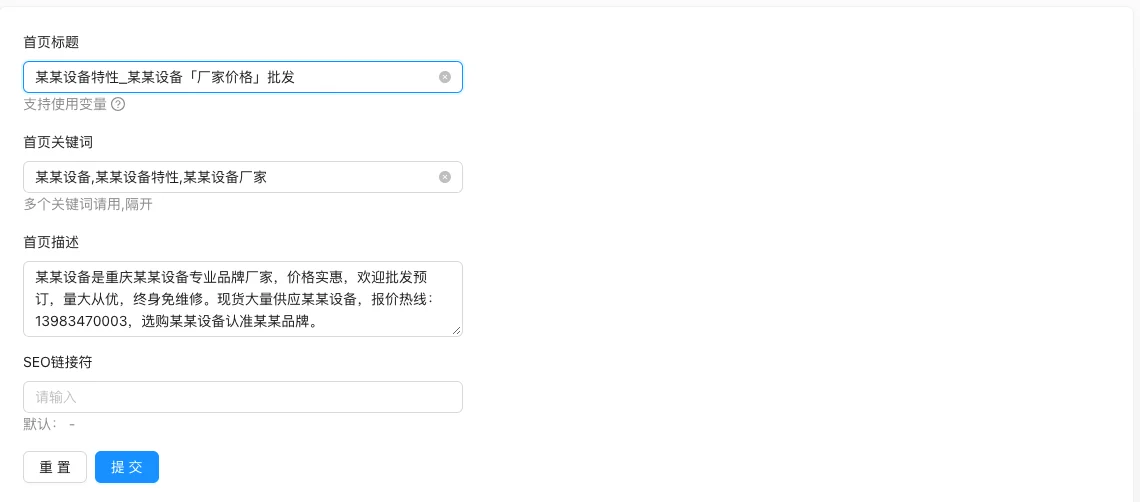
Setting item description
| Setting items | function | Value / Default | How to select / Fill in suggestions | Impact / Note |
|---|---|---|---|---|
| Home title | Home<title>The content |
Text, supports variables; no default required [source code not specified] | Write brand name + core business term, such as 'AnQi CMS - Corporate Website System'; keep the length within 30 characters. | Will be displayed in the browser tab and search results title; clear cache after modification |
| Home page keywords | Home<meta name="keywords">The content |
Text, no default [Source code not specified] | Multiple keywords are separated by English commas,Comma-separated, 3-5 core words, do not pile up |
Chinese commas are treated as a single word; search engines have reduced the weight of meta keywords |
| Home page description | Home<meta name="description">The content |
Text, no default [Source code not specified] | Summarize the site theme in 80-120 characters, including core keywords | Commonly used in search results summary, affecting click-through rate |
| SEO separator | Separator when combining titles | String, default-[Source Code +实测] |
Used in Chinese sites-or_; Available for English sites\| |
Affects the display of multi-level titles (home page/categories/documents) after concatenation |
Detailed explanation of configuration items
SEO separator
Condition for occurrence: Always display [实测].
Source code default-[Source Code], pre-filled by actual measurement-[COMPUTED]. This character is used fortdkseparating site name, category name, and document title when labeling.
Recommended value: Keep default-; Need to be compact for display_. Fill in special characters (such as|) and pay attention to whether the template is correctly escaped.
Consequences of filling in incorrectly: Leaving it blank will cause the different parts of the title to be directly connected, making it difficult to read.
Operation steps
- Go to 'Settings → TDK Settings'.
- Enter the homepage title, keywords, and description.
- Adjust the SEO link symbol as needed.
- Click 'Submit' to save, view the homepage source code on the front end to confirm.
Applicable scenarios and suggestions
- New site launch: Write a description and 3-5 core keywords first, avoid clutter.
- For multi-column sites: Write the overall positioning of the site on the homepage TDK, and hand over specific categories to category TDK.
Front-end call example
TDK passestdkTag call:
<title>{% tdk with name="Title" %}</title>
<meta name="keywords" content="{% tdk with name="Keywords" %}">
<meta name="description" content="{% tdk with name="Description" %}">
<link rel="canonical" href="{% tdk with name="CanonicalUrl" %}" />
name="Title"SupportssiteName=trueAttach the website name,showParent=trueDisplay parent title,sep="_"Modify delimiter:
<title>{% tdk with name="Title" siteName=true %}</title>
Assign it to a variable and use it later:{% tdk seoTitle with name="Title" siteName=true %}{{ seoTitle }}.
Points to note
- Support variable syntax as specified in the template tag manual; incorrect variables will not cause an error but will not output the expected content.
- Keywords should be separated by English commas; Chinese commas will be treated as a single word.
- No changes are visible on the front end after modification; clear the cache first.
Related documents
- Global Settings
- Navigation settings
- template tag manual.
tdkTag