
currency settings
currency settings
Currency settings are used to define the currency name, international code, and symbol displayed in the mall and in the order interface return.
Entry Path
Top menu of the back-end →「Settings」→「Currency Settings」. Actual address:/system/setting/currencyrequires administrative privileges(canAdmin)
Function description
The page contains only one settings form, including currency name, international code, and currency symbol, which takes effect on the mall front-end and interface return after saving.
Screenshot of the interface
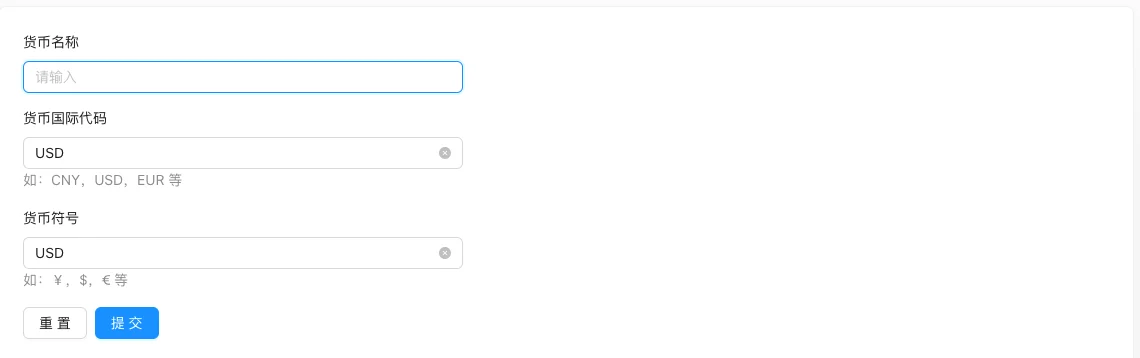
Setting item description
| Setting items | function | Value / Default | How to select / Fill in suggestions | Impact / Note |
|---|---|---|---|---|
| Currency Name | Currency name displayed on the back-end and front-end | Text, the default value is not noted in the source code [Source code] | Fill in「RMB」for domestic malls and「USD」for foreign trade | Used for back-end order and financial display |
| Currency international code | Standard three-letter code | AsCNY/USD/EUR[Source code] |
Follow ISO 4217 and fill in according to the settlement currency | Returned to the user side by the interface, the front-end judges the currency based on this. |
| Currency Symbol | Symbol displayed before price | As¥/$/€[Source code] |
Corresponding to currency, Renminbi¥, US Dollar$ |
Only changes the display, will not convert the existing price |
Detailed explanation of configuration items
Attention to filling in the currency symbol field
Condition for occurrence: Always display [实测].
In the source codeCurrencyConfigDefinedName/Currency/SymbolThree fields (config/setting.go:136-140), but the two input boxes of 'currency international code' and 'currency symbol' on the front-end page use the same submission field name, which may cause the symbol value to overwrite the code value [COMPUTED].
Suggestion: After filling in, check the actual output on the front-end product page and order interface; if the code is displayed as a symbol, adjust the order of filling or check the patch version.
Consequences of filling in incorrectly: International shopping mall may occur currency identification error.
Operation steps
- Enter 'Settings → Currency Settings'.
- Fill in the currency name, international code, and symbol.
- Click 'Submit' to save.
- Confirm the correct display in the product details page and order interface.
Applicable scenarios and suggestions
- Domestic mall: Renminbi /
CNY/¥. - Foreign trade mall: Fill in the corresponding code and symbol according to the target market, and ensure that the template price formatting logic is in coordination.
Front-end call example
The order-related interface will return the currency symbol fieldcurrency_symbol, the front-end display should be based on the back-end returned value, avoid hardcoding:
{% archiveSku productSku with id=1 %}
{{ productSku.Price }}
{% endarchiveSku %}
priceFormatThe source of the symbol of the label is the configuration on this page.
Points to note
- The currency setting only changes the display symbol and will not automatically convert the existing price. Adjust the product price before switching the currency.
- Note that there is a field name conflict in the submission field of the above currency symbol field, be sure to check on the front end after saving.
- The mall mode needs to be enabled in「Global Settings → Operation and SEO Status」.