
Navigation settings
Navigation settings
Navigation settings are used to maintain the navigation links on the website's front page, supporting custom navigation categories and a two-level navigation structure.
Entry Path
Top menu of the background →「Settings」→「Navigation Settings」。Actual address:/system/setting/navrequires administrative privileges(canAdmin)
Function description
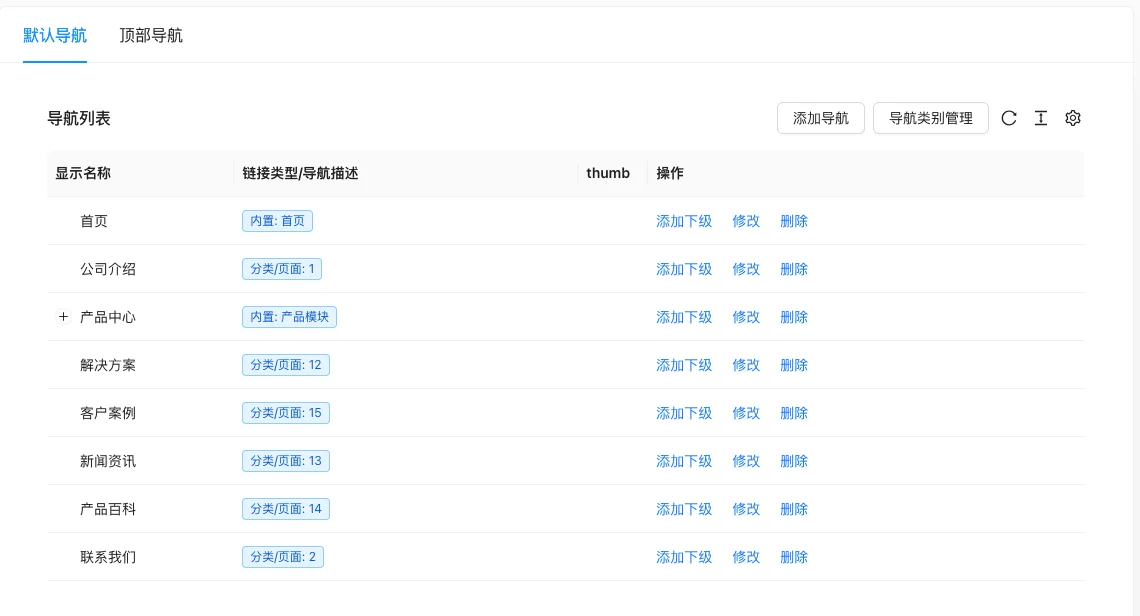
Pages display lists according to navigation categories (top Tab), supporting the addition of navigation categories, adding navigation, adding sub-level, modifying and deleting. Navigation links can support up to two levels.
Screenshot of the interface
Setting item description
| Setting items | function | Value / Default | How to select / Fill in suggestions | Impact / Note |
|---|---|---|---|---|
| Parent navigation | Determine the navigation level | select, containing「**Navigation」=0 | Select the first-level navigation **; select the corresponding parent level for the second level | Up to two levels; the「Add Sub-level」button appears only when the level conditions are met |
| display name | The text displayed on the front desk for navigation | Text, No Default [Source Code] | Can be different from the target name, convenient for flexible naming | If empty, fill in the title of the selected document [source code] |
| Subheading name | Navigation name below the text | Text, No Default [Source Code] | Enter additional information if needed | Whether to display is determined by the template |
| Navigation description | Navigation description | Text, No Default [Source Code] | For background recognition | — |
| Thumbnail | Navigation image | Image upload, no default [source code] | Upload as required by the template | Whether to display is determined by the template |
| Link Type | Determines what the navigation points to | Radio: 0 built-in / 1 category or page / 3 document / 2 external link | Select by target type, see details below | Changing the type will change the next control and meaning |
| Target selection | Point to specific targets by link type | Changes with type, see below for details | — | Same field namepage_idMeaning varies under different types |
| Display style | Custom style class | Text, default style name is empty [source code] | Enter style name when custom CSS is needed | Needs template to be used with custom CSS |
| Display order | Sort Value | Number, default 99 [i18n] | The smaller the value, the closer to the front | Same value is ordered by creation sequence |
Detailed explanation of configuration items
Link type and target (four-way联动)
Condition for occurrence: Always display [Tested] in the navigation popup for adding/editing.
| Link type value | Meaning | Corresponding target control |
|---|---|---|
0 |
Built-in navigation | Single selection 'Built-in navigation', option 0=Home + Each content model |
1 |
Category/Page | Dropdown 'Select Category/Page', options with status not 1 are disabled |
3 |
Document | Dropdown 'Select document', supports search; fill in the default title after selection |
2 |
External link | Text box 'Enter link' |
All types in the source code use the same submission field namepage_idChange control and meaning with type; fill in external link type insteadlink(Required to start with http or https) [Source code].
Recommended valueUse 'Category/Page' for in-site categories, 'Document' for single articles, 'Built-in' for home pages/models, and 'External link' for off-site.
Consequences of filling in incorrectlyMismatch between type and target (such as selecting 'Category' and filling in an external link address) can cause navigation jump errors or empty links.
Navigation level
Navigation is limited to two levels. The 'Add Sub-level' button in the source code only appears whenparent_id===0 || level<2 || 子导航非空[Source code].
Consequences of filling in incorrectly: When trying to establish a three-level navigation, the entry does not appear, which is a normal limitation and not a bug.
Operation steps
- Enter 'Settings → Navigation Settings.'
- Select a navigation category and click 'Add Navigation.'
- Enter the display name, select the link type and target.
- Click 'Add Sub-level' on the corresponding entry when a second-level navigation is needed.
- After saving, confirm the navigation display on the front end.
Applicable scenarios and suggestions
- Footer navigation: Add a new category through 'Navigation Category Management', call the template according to the category, and avoid mixing it with the top navigation.
- Multi-level dropdown: Only supports two levels, use other display methods for more than two levels.
Front-end call example
{% navList navs with typeId=1 %}
  <ul>
  {% for item in navs %}
    <li class="{% if item.IsCurrent %}active{% endif %}">
      <a href="{{ item.Link }}">{{ item.Title }}</a>
      {% if item.NavList %}
        <dl>
        {% for inner in item.NavList %}
          <dd><a href="{{ inner.Link }}">{{ inner.Title }}</a></dd>
        {% endfor %}
        </dl>
      {% endif %}
    </li>
  {% endfor %}
  </ul>
{% endnavList %}
Points to note
- Navigation only supports two levels, adding a sub-level will not generate a third-level entry.
- Deleting a navigation item will not delete the corresponding category or page, it only affects the front-end navigation display.
- The category ID must match the
typeIdcorresponding, otherwise the data cannot be accessed.
Related documents
- Global Settings
- Document Category
- template tag manual.
navListTag