
Content settings
Content settings
Content settings are used to control the document editor, URL generation rules, list pagination, image processing and thumbnail strategy, affecting the way content is entered and displayed on the front end of the entire site.
Entry Path
Top menu of the backend → 'Settings' → 'Content Settings'. Actual address:/system/setting/contentrequires administrative privileges(canAdmin)
Function description
The page is divided into three tabs: 'Basic Configuration', 'List and Rules', and 'Image Thumbnail Processing'. The configuration will take effect on the entire site after saving. The three tabs are saved as a whole package, and please confirm that the current page has been saved before switching [source code].
Screenshot of the interface
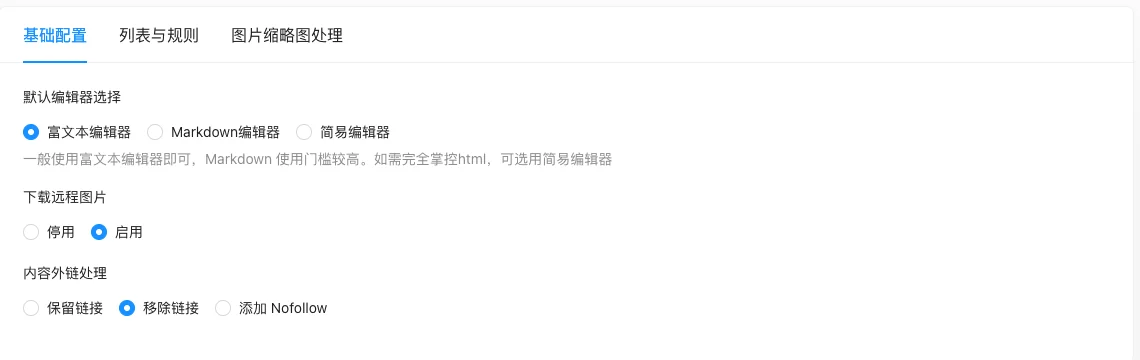
Basic configuration:
List and Rules:
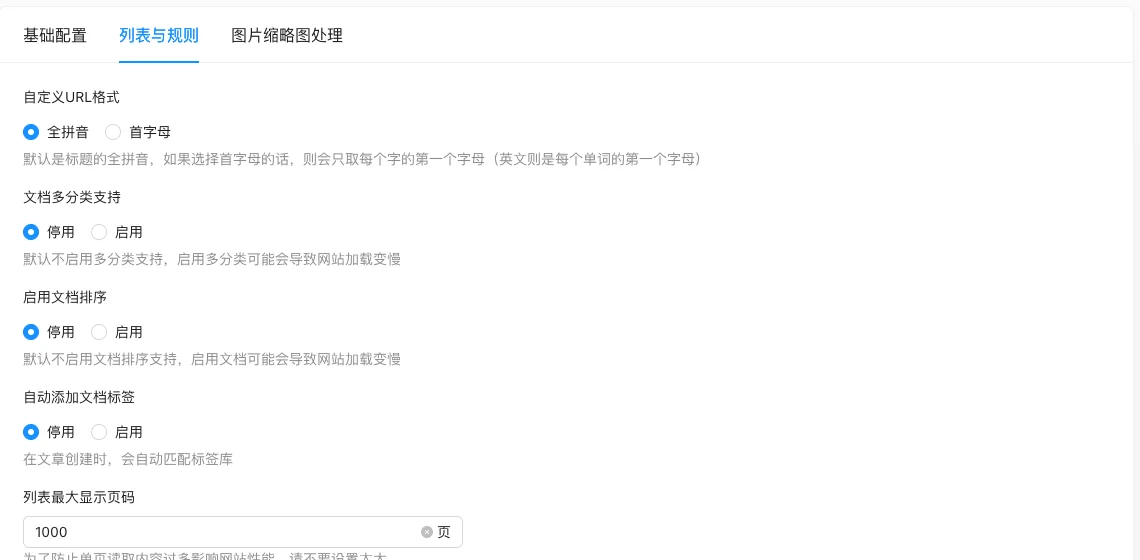
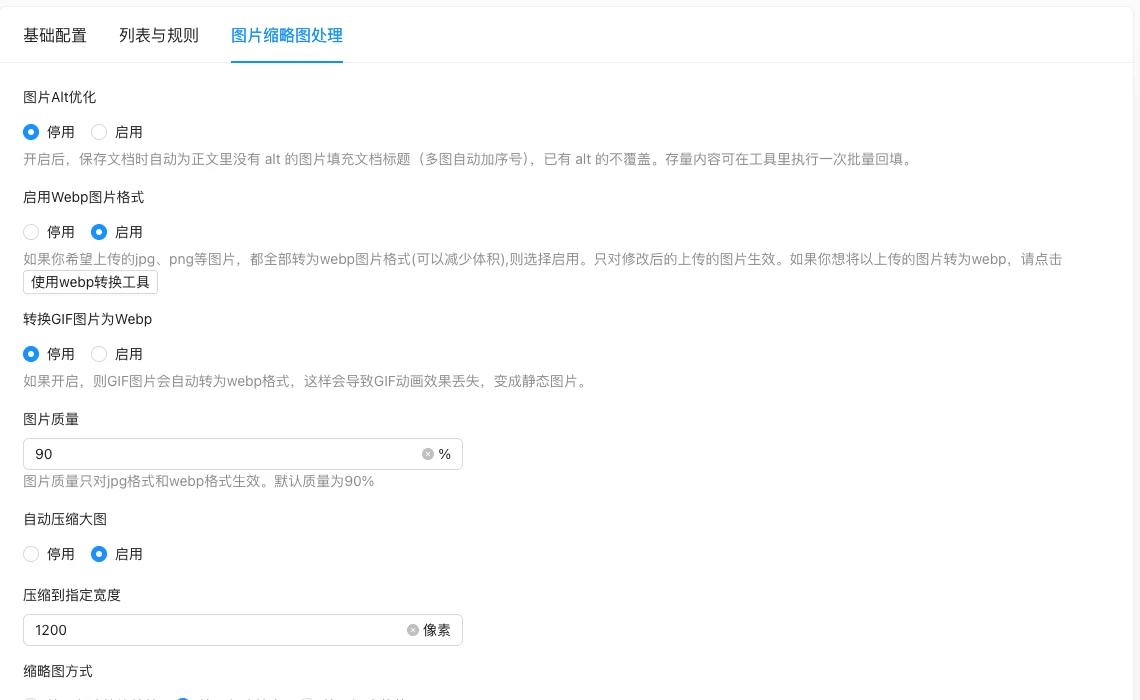
Image Thumbnail Processing (including default values):
Setting item description
Basic Configuration
| Setting items | function | Value / Default | How to select / Fill in suggestions | Impact / Note |
|---|---|---|---|---|
| Default Editor | Editor used when publishing documents | Rich text (empty) / Markdown / Simple [Source code +实测] | Generally select rich text; use simple if you need to fully control HTML; Markdown has a higher threshold | Default 'Rich text editor' in实测 |
| Download remote images | Download linked images in the text to local when saving documents | Radio: 0 Disable / 1 Enable; Default 'Enable' [实测] | Can be disabled when using your own image bed | Linked images will fall into the local resource library after enabling |
| Content link handling | Control external links in the text | radio: 0 retain / 1 remove / 2 add Nofollow [source +实测]; default 'remove link' in实测 | Select 'add Nofollow' for external flow weight | 0Retain the original link;1Remove link;2Add link withrel="nofollow"——Only value2Add nofollow only,0Will not add [source] |
List and rules
| Setting items | function | Value / Default | How to select / Fill in suggestions | Impact / Note |
|---|---|---|---|---|
| Custom URL format | Document link pinyin form | radio: 0 Full pinyin / 1 Initial letter [source code] | Chinese site uses full pinyin, long titles can use initial letters | URL affecting the static naming pattern |
| Document multi-category support | Allow a document to belong to multiple categories | radio: 0 Disable / 1 Enable [source code] | Default disable | Enabling may increase loading overhead |
| Enable document sorting | Allow manual document sorting | radio: 0 Disable / 1 Enable [source code] | Default disable | Enabling may increase loading overhead |
| Automatically add document tags | Automatically match tag library when creating new documents | radio: 0 Disable / 1 Enable [source code] | Depends on existing data in tag library | No effect when no tag library |
| List **Display page number | List page flip limit | Number, default source code 1000 [source code], runtime<1Fallback 1000 |
Do not set too large | Too large will increase the burden of single-page reading |
| Number of items displayed per page of the list | Maximum number of documents per page | Number, default 100 [source code], at runtime<1Fallback 100 |
Set according to performance | Too large will affect the loading of the list page |
Image thumbnail processing
| Setting items | function | Value / Default | How to select / Fill in suggestions | Impact / Note |
|---|---|---|---|---|
| Image Alt optimization | Fill the document title for the text image without alt when saving the document | Radio: 0 disable / 1 enable; default is 'disable' [实测] | Sites with SEO needs are recommended to be enabled | Automatically add serial numbers to multi-image; do not overwrite existing alt |
| Enable Webp image format | Convert uploaded jpg/png to Webp | Radio: 0 Disable / 1 Enable; Default 'Enable' [实测] | Most sites recommend enabling to reduce size | Only effective for images uploaded after modifying the settings |
| Convert GIF images to Webp | GIF is also converted to Webp | Radio: 0 disable / 1 enable; default is 'disable' [实测] | Keep disabled when animation needs to be preserved | After enabling, the GIF animation is lost and becomes a static image |
| Image quality | jpg/webp compression quality | Number 10-100 [source code], default 90 [constant]; measured 90 [measured] | Default 90 is enough | Only effective for jpg and webp |
| Automatically Compress Large Image | Compress the uploaded large image by width | Radio: 0 Disable / 1 Enable; Default 'Enable' [实测] | Enable for sites with large images | — |
| Compress to a specified width | Large image compression width (pixels) | Number; The source code comment defaults to 1200 but the front-end placeholder writes 800 [conflict]; Measured 1200 [measured] | Set according to the front-end display width | Linked with the previous item, only displayed when 'Auto-compress large image' is enabled |
| Thumbnail mode | Thumbnail generation method | radio: 0 Scale proportionally by the longest side / 1 Fill by the longest side / 2 Crop by the shortest side; Default 'Fill by the longest side' [measured] | Use cropping for list cards, and use uniform scaling for mixed text and image layout | — |
| Thumbnail size (width × height) | Thumbnail pixel size | Number, default 250 [source code]; measured 300×200 [measured] | Set the display area according to the template | After changing the size, submit first, then click 'Batch Generate Thumbnails' |
| Default thumbnail | Alternative method when the document has no images | radio: 0 random image / 3 image categories; default 'random image' [measured] | Choose 'image categories' to unify the style | After selection, link to the attachment or category selection below |
Detailed explanation of configuration items
Convert GIF images to Webp
Condition for occurrence: Displayed only when 'Enable Webp image format' is 'Enabled' [source code].
Source code confirmed after enabling GIF to automatically convert to Webp, animation effect lost, becomes a static image [source code+i18n]
Recommended valueWhen there is a need for dynamic graphics on the site, keep it disabled; enable it when there is no need for dynamic graphics and pursuing volume.
Consequences of filling in incorrectlyAfter enabling, all GIFs become static and the original animation cannot be restored.
Compress to specified width (default value conflict)
Condition for occurrenceOnly display [source code] when 'Auto Compress Large Image' is enabled.
Source code comment write default 1200(config/setting.go:43),Front-end placeholder write 800, actual pre-filled 1200 [COMPUTED]。
Recommended valueFill 1200 based on actual measurement; adjust to the actual display width on the front end if smaller.
Consequences of filling in incorrectlyA too small width will cause the details of the large picture to be lost.
Default thumbnail (cross-field联动)
Condition for occurrence: Always display [实测].
| Value | Meaning | Linked field |
|---|---|---|
0 |
Randomly select from the selected images | Display multiple selected attachmentsdefault_thumbs |
3 |
Randomly select from the specified image category | Display image category dropdownthumb_category_id(Including 'Unclassified images' 0, 'All images' -1) |
The comments in the source code front-end submission are written as '0=default, 1=category', which is inconsistent with Go and the interface, follow the interface options 0/3 [COMPUTED].
Consequences of filling in incorrectly:The link field is filled incorrectly, which will cause the default thumbnail to fail to output, and the front-end list will display a blank image.
Batch generate thumbnails
Condition for occurrence:The thumbnail size has been changed [source code].
You must submit and save the size first, then click 'Batch generate thumbnails', otherwise the existing thumbnails will not recalculate according to the new size [source code+i18n].
Operation steps
- Enter 'Settings → Content Settings.'
- Switch to the tab you need to modify.
- Click 'Submit' after adjusting the options; note that the three tabs are a whole package overlay.
- After submitting, execute batch regeneration for thumbnail size changes.
- Images related to Webp conversion should be processed with the accompanying conversion tool for existing images.
Applicable scenarios and suggestions
- Information site with many images: Enable Webp + automatic compression of large images + image Alt optimization, balancing volume and SEO.
- For sites that value inclusion, keep 'Content External Link Handling' as 'Add Nofollow' to avoid weight leakage.
- For large sites, be cautious with 'Multiple Categories' and 'Document Sorting' as they increase query load.
Points to note
- Webp conversion will not process images uploaded before the setting took effect, and it is necessary to use the Webp conversion tool for batch processing.
- Turn on GIF to Webp will make the animated image static. Turn it on only after confirming that you do not need the animation.
- After changing the thumbnail size, you must execute batch regeneration.
- The default values on this page are based on actual measurements (see the [Actual Measurement] marked in the table above); conflicts between source code and front-end placeholder have been noted in the corresponding items.