
Document List
Document List
Document list is the document management center of the entire site, used for filtering, searching, editing, batch processing documents, and entering the recycle bin and batch importing.
Entry Path
Top menu of the background → 'Content' → 'Document List'. Actual address:/system/archive/listrequires administrative privileges(canAdmin)
Function description
The list is displayed by grouping documents by model, providing title, model, classification, Flag, status, and other filtering conditions, as well as access to add documents, batch import, batch replace keywords, recycle bin, and other entries.
Screenshot of the interface
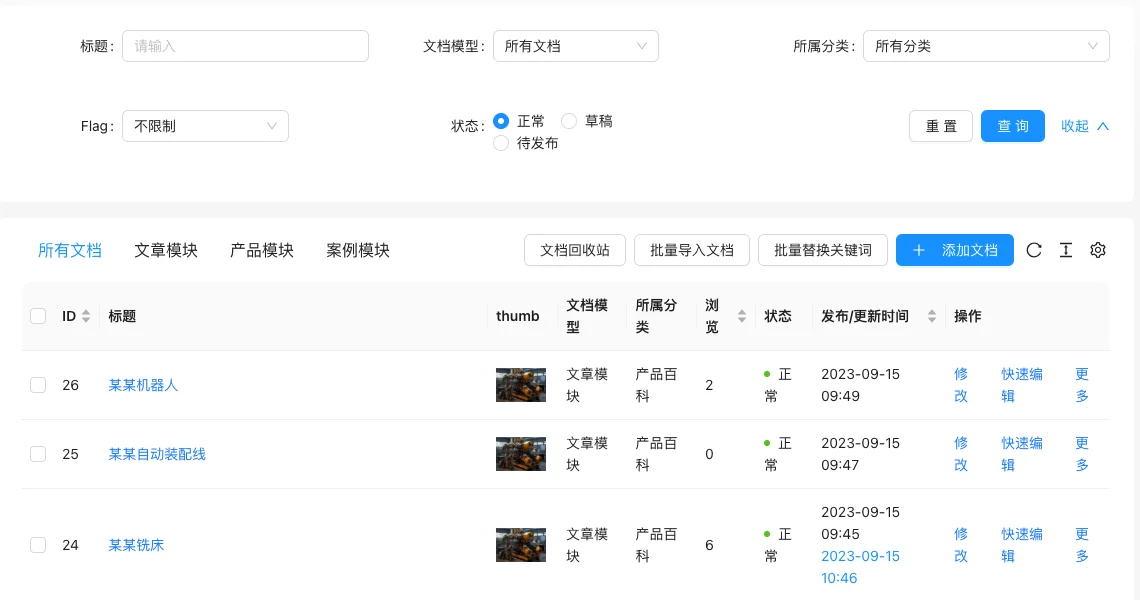
List field description
| field | Meaning | Value or source | Impact on the operation |
|---|---|---|---|
| ID | Document **number | Back-end record, read-only | Used for identification and filtering, cannot be directly edited |
| Title | Document title | Back-end record, read-only | Used for identification and filtering, cannot be directly edited |
| thumbnail | Has thumbnail | Back-end record, read-only | Used for identification and filtering, cannot be directly edited |
| Document model | Document model (article module/product module/case module, etc.) | Back-end record, read-only | Used for identification and filtering, cannot be directly edited |
| Category | Document category | Back-end record, read-only | Used for identification and filtering, cannot be directly edited |
| View | Number of views | Back-end record, read-only | Used for identification and filtering, cannot be directly edited |
| Status | Normal / Draft / Pending publication | Back-end record, read-only | Used for identification and filtering, cannot be directly edited |
| Publish/Update Time | Publish and Last Update Time | Back-end record, read-only | Used for identification and filtering, cannot be directly edited |
| Operation | Edit, Quick Edit, More (delete, etc.) | Back-end record, read-only | Used for identification and filtering, cannot be directly edited |
| Value / Default | How to select / Fill in suggestions | Impact / Note | |
| :— | :— | :— | :— |
| ID | Document **number | — | Generated by system or fill according to platform requirements |
| Title | Document title | — | Fill in a name that is easy to identify and consistent with the display on the front end |
| thumbnail | Has thumbnail | — | Upload with size and proportion as required by template |
| Document model | Document model (article module/product module/case module, etc.) | — | Select according to the actual business scope, multiple selections are allowed |
| Category | Document category | — | Select according to the actual business scope, multiple selections are allowed |
| View | Number of views | — | Fill in according to the page prompt and business requirements |
| Status | Normal / Draft / Pending publication | — | Enable or disable according to business needs |
| Publish/Update Time | Publish and Last Update Time | — | Set according to business rhythm, refer to default values |
| Operation | Edit, Quick Edit, More (delete, etc.) | — | Click the corresponding operation as needed |
Filter Conditions
- Title: Enter keywords for continuous matching, will not split words.
- Document Model: Filter by model, switch to display only the documents of the model after switching.
- Category: Only list the documents of the current category and its subcategories.
- Flag: Filter by recommended attributes.
- Status: Normal / Draft / Pending publication.
Batch Operations and Status Transitions
- 「Batch Import Documents」: Import external content according to the interface specifications.
- 「Batch Replace Keywords」: Batch replace specified words in the title or content.
- 「Document Recycling Bin」: View deleted documents, which can be restored or permanently deleted.
- Status Transition: Normal documents can be converted to drafts or pending publication; documents pending publication become normal after publication.
Filter Conditions
| Filter Options | Value | Rule matching |
|---|---|---|
| Title | Keywords | Continuous matching, do not split words |
| Document model | Each model | Only show the model document after switching |
| Category | Each category | Include the current category and its subcategories |
| Flag | Unrestricted/each recommended attribute | Filter by recommended attributes |
| Status | Normal/Draft/Pending publication | Filter by publication status |
Status transition
| Status | Meaning | Executable action |
|---|---|---|
| Normal | Published, visible on the front page | Edit, move to draft, delete |
| draft | Not published | Publish after editing |
| Pending publication | Scheduled release pending | Automatically published at the set time |
| Recycle Bin | Deleted | Restore or completely delete |
Operation steps
- Enter 'Content → Document List'.
- Narrow down the range using filter conditions.
- Click 'Edit' to enter the full editing page, or click 'Quick Edit' to change a few fields.
- Use 'More' to perform delete operations and more.
Applicable scenarios and suggestions
- For sites with a lot of content, use 'Document Model + Category' two-level filtering first, which is faster than title search to locate.
- Use 'Batch Replace Keywords' when changing -link or brand words, do not change article by article.
Front-end call example
Document list passesarchiveListTag call:
{% archiveList archives with type="list" moduleId="1" categoryId="1" limit="10" %}
  {% for item in archives %}
    <a href="{{ item.Link }}">{{ item.Title }}</a>
  {% endfor %}
{% endarchiveList %}
type="page"to coordinate{% pagination pages with show="5" %}Output pagination. List items are availableitem.CreatedTime/item.UpdatedTimeetc., timestamps need to be processedstampToDateformatted.
Points to note
- Title filtering is continuous matching, entering 'Template Tag' will not match titles that only contain 'Template' and 'Tag' but appear separately.
- Deleting documents will enter the recycling bin, not deleted immediately completely.
- When there are many filtering conditions, clear the old conditions first and then re-filter to avoid the result being zero but mistakenly believing there is no data.