
Image Resource Management

📅 November 21, 2026 👁️ 0

Image Resource Management

Image Resource Management is used for uploading, classifying, searching, and maintaining all images and video resources on the website.

Entry Path

Top menu of the background → 'Content' → 'Image Resource Management'. Actual address:/system/archive/attachmentrequires administrative privileges(canAdmin)

Function description

The page displays images categorized by resources, supporting filtering, uploading, batch selection, category transfer, deletion, and viewing image details and replacing images.

Screenshot of the interface
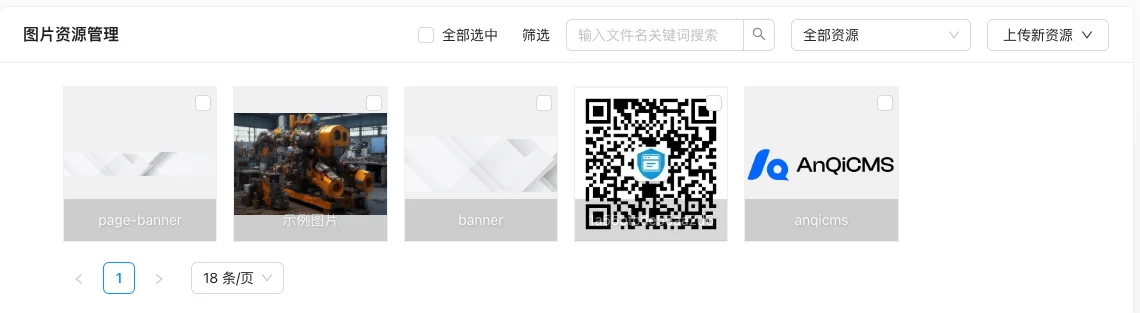
Image Resource Management

List field description

field Meaning Value or source Impact on the operation
Resource Category A group used to categorize images Back-end record, read-only Used for identification and filtering, cannot be directly edited
File Information File name, type, size, resolution Back-end record, read-only Used for identification and filtering, cannot be directly edited
Upload time Resource upload date Back-end record, read-only Used for identification and filtering, cannot be directly edited
Operation View details, delete, etc. Back-end record, read-only Used for identification and filtering, cannot be directly edited
Meaning
:— :—
Resource Category A group used to categorize images
File Information File name, type, size, resolution
Upload time Resource upload date
Operation View details, delete, etc.

Operation steps

  1. Go to 'Content → Image Resource Management'.
  2. Click 'Upload new resource' to upload images or videos.
  3. Use 'Filter' to search for resources by category or type.
  4. After selecting resources in bulk, you can transfer them to a new category or delete them.
  5. Click on a single image to view details, where you can view the large image, address, and perform replacements or deletions.

Applicable scenarios and suggestions

  • Create categories based on use (such as Banner, product images, article illustrations) for easy template selection by category.
  • It is recommended to enable 'Download remote images' for images referenced in the text, to store them uniformly in the site's resource library.

Points to note

  • After replacing the image, the URL remains the same, but the file size becomes the size of the new image; very large images will be proportionally reduced according to the compression width set in the content settings.
  • When the background has been updated but the front-end does not display it, clear the browser cache and view it again.
  • Deleting an image referenced by a document may cause the front-end image to fail, and confirm the reference status before deletion.

Related documents

Related articles

Help for Content Model

The content model determines the document function of the entire site. The system is default built-in with Article Model and Product Model these 2 models.The built-in content model can be modified but not deleted.The newly added custom model can be modified and deleted. It should be noted that when you want to delete a model, you must think carefully, as deleting a model will also delete all documents and categories under that model.The content model can modify the content fields such as: model name model

2022-06-20

Help for Document Tags

Document tag management can view and manage all document tags.The document tags are not classified by category and model, the same tag can be marked for documents of different content models at the same time.The document label is relatively simple, it includes label name, index letter, and description content.You can perform operations such as adding, editing, and deleting in the tag management.Add document tag, you can fill in and add fields such as: tag name, display name of the tag.Index letters index letters will only contain

2022-06-20

Help for Document Classification

Document classification management can manage the classification of different content models.Each category belongs to only one content model. Through category management, you can quickly view the document list of the current category, add subcategories to the current category, edit and modify the content of the category, and other operations.After a category is created, its content model is fixed and cannot be changed.In the form for adding and editing document categories, you can enter the following content: document model once selected document model

2022-06-20

Instructions for Adding Documents

The document feature provides powerful document addition operations.By adding a document interface, we can add various types of properties to the document, such as document title, recommended attributes, document classification, thumbnail, tag tags, and more.Add the default features on the interface for adding a document: The document title is a required field, and the document title is used as the h1 title displayed to the user.Recommended attribute document recommended attributes can specify 8 types, can be selected individually

2022-06-20

Document Category

Document classification is used to organize documents by model, maintain classification hierarchy, template, display status, and custom classification fields.

2026-11-21

Custom field usage tutorial

Custom fields are used to provide additional business fields for documents, categories, tags, users, city stations, messages, template settings, and orders without modifying the program code.

2026-11-21

Document List

Document list is the document management center of the entire site, used for filtering, searching, editing, batch processing documents, and entering the recycle bin and batch importing.

2026-11-21

Content model

Content model defines the type, table name, title name, and custom fields of documents, and is the configuration entry for document and classification fields.

2026-11-21