
Custom field usage tutorial
Custom field usage tutorial
Custom fields are used to provide additional business fields for documents, categories, tags, users, city stations, messages, template settings, and orders without modifying the program code.
Anqi CMS 3.8.x is built-in with 18 types of field types, and there are 9 locations to configure custom fields. This article explains in the order of 'first understand the field, then choose the location, and finally set and call according to the type.'
Description: If the 'Product Custom Order Field' and the 'Communication Order Field' are merged as order fields, it can also be understood as 8 types of configuration scenarios. Their objects and backend entries are different, so this article is explained separately, and it is expanded to 9 positions accordingly.
Entry Path
Custom fields do not have a unified entry, enter according to the configuration location. The following entries all require administrative privileges (canAdmin):
| Field location | Backend entry | Actual address |
|---|---|---|
| Document field, category field | Content → Content Model → Modify | /system/archive/module |
| Tag field | Content → Document Tag → Custom field | /system/archive/tag |
| User field | User Management → User Additional Field Settings | /system/plugin/commerce/user |
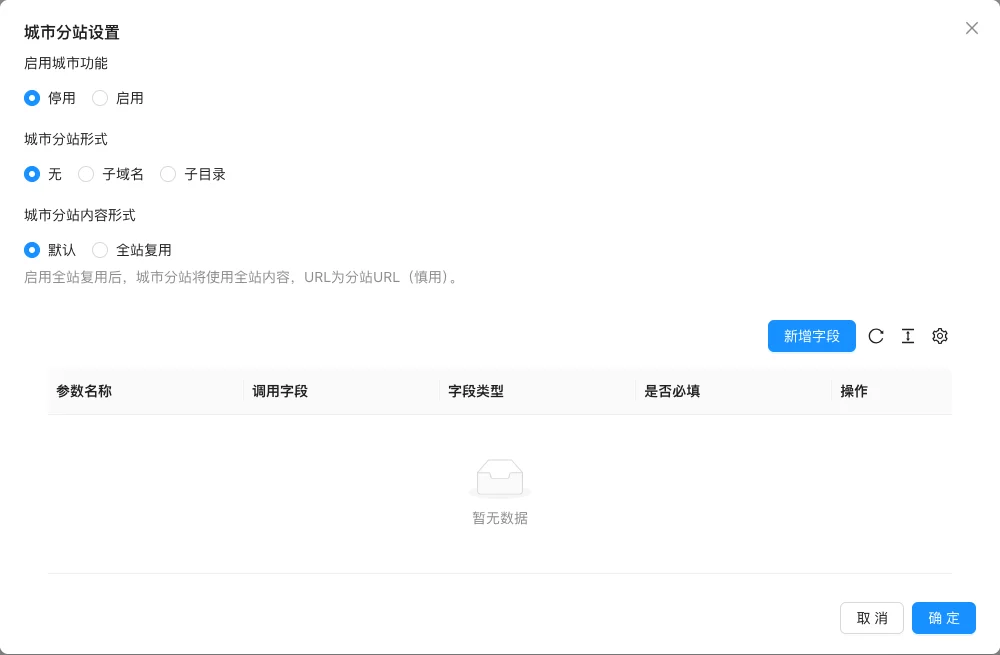
| City Station Field | Content → City Management → City Station Settings | /system/archive/place |
| Message Field | Website Message Management → Website Message Settings | /system/plugin/interaction/guestbook |
| Template Content Settings | Design → Template Content Settings | /system/design/diyfield |
| Custom Order Field | Product Edit Page → Custom Product → Custom Order Field Management | /system/product/detail?id=<产品ID> |
| Communication Order Field | Communication Order → Order Settings | /system/order/communication |
Function description
Custom fields are used to extend the data structure of documents, categories, tags, users, city stations, messages, template settings, and orders. Fields are stored as real database columns (document fields, user fields) and as JSON (in other locations), so the calling method is different.
Screenshot of the interface
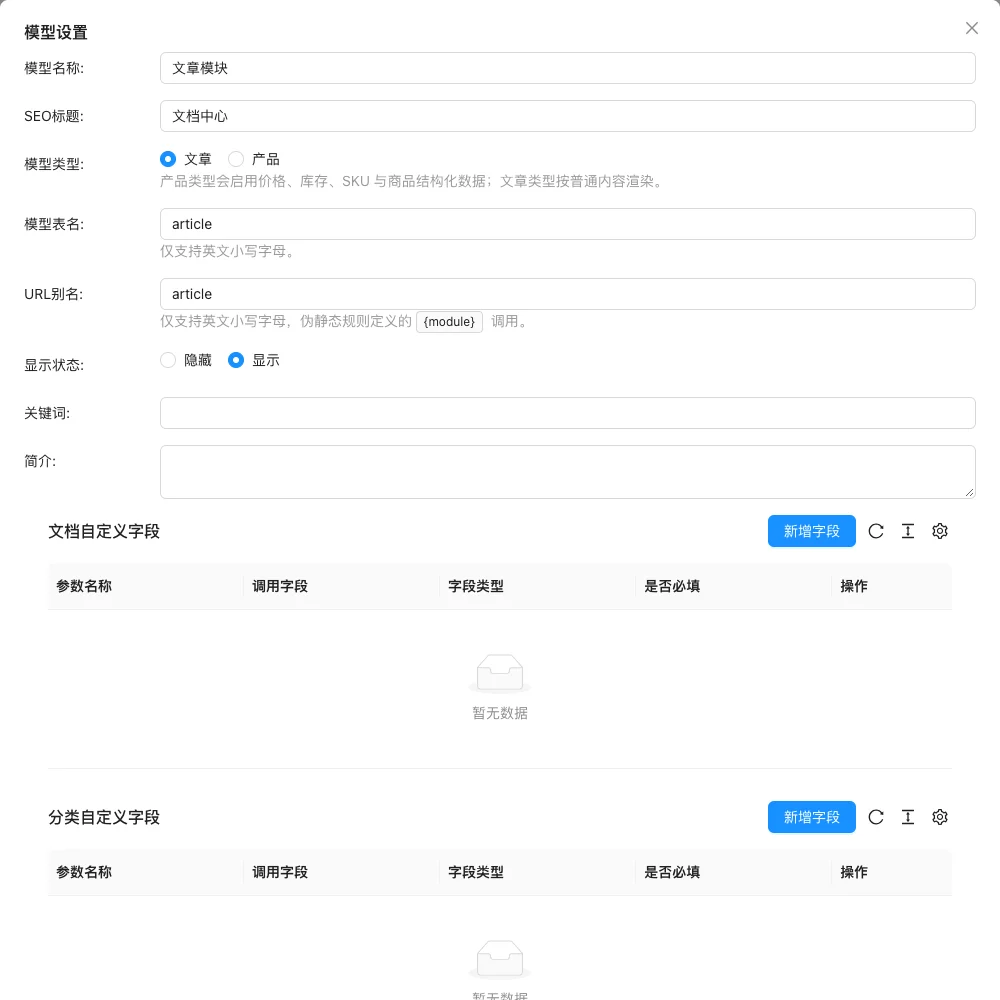
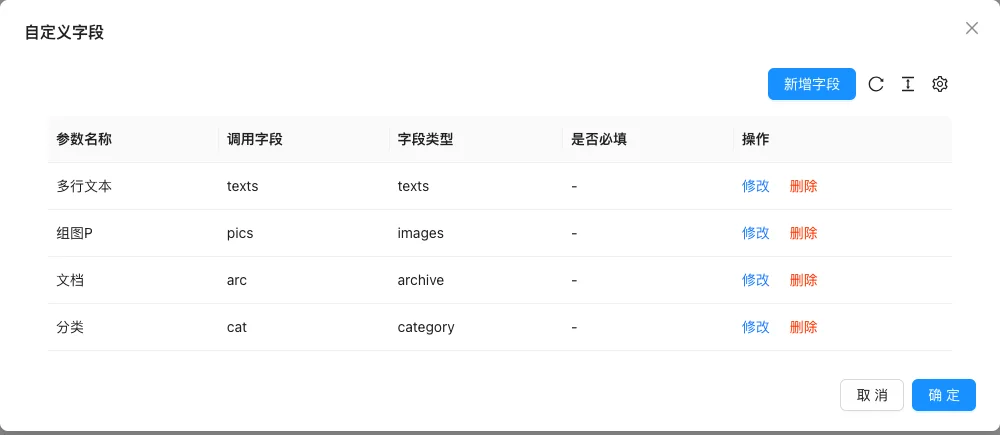
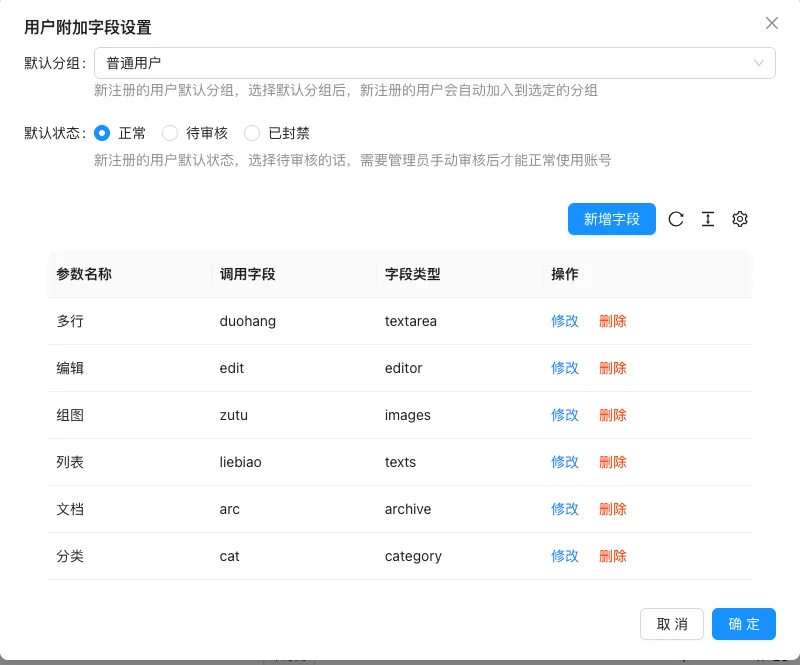
The following configuration locations are all equipped with current background screenshots, including field type selection pop-ups, content models, tags, users, city stations, messages, template content settings, custom order fields, and communication order fields.
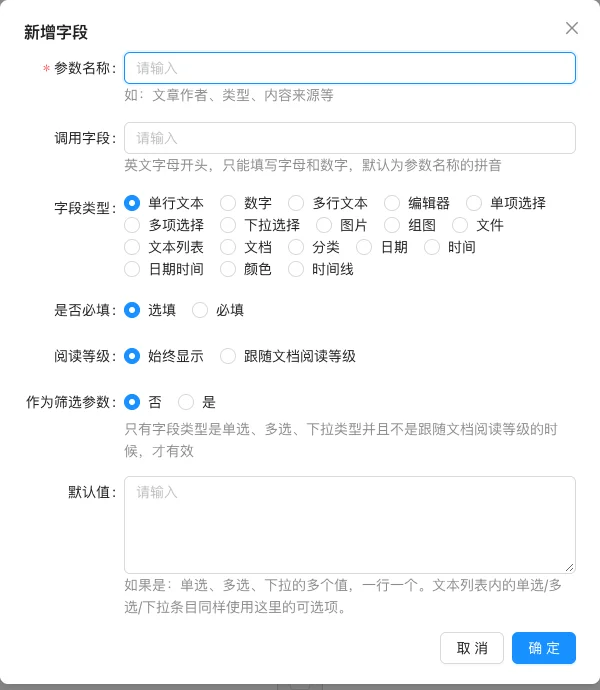
Setting item description
| Setting items | function | Value / Default | How to select / Fill in suggestions | Impact / Note |
|---|---|---|---|---|
| Parameter Name | Display Name in Backend | Text without Default | Write a Chinese name for easy recognition | — |
| Field invocation | Database Column Name and Template Call Name | English identifier starting with a letter [Source Code] | Use lowercase letters, numbers, and underscores | Cannot be renamed after data is available |
| Field type | Determines the input control and storage format | 18 Types [Source Code] | Choose according to the data form, see Chapter 3 | Type cannot be changed after creation |
| Default value | Initial content when no input | Determined by type | Default value for single/multiple selection is option configuration | Multiple selection values are separated by commas in the document |
| Mandatory? | Whether to force input when submitting | Yes / No | Set according to business requirements | Partially mandatory for no in the background |
Common configuration items include parameter name, calling field, field type, default value, and whether it is required; some locations also support filtering, following reading level options, etc. Detailed explanation see '1.1 Field configuration items', supported types see 'Chapter 3, Detailed Explanation of 18 Field Types'.
Operation steps
- Locate the corresponding back-end entry according to 'Section 2, 9 configurable positions'.
- Add a field, fill in the parameter name, calling field, field type, and default value.
- After saving, fill in the field value on the corresponding content editing page.
- Call in the template according to 'Section 4, Quick Reference of Template Invocation' or read through the interface.
Points to note
- Do not rename the calling field once there is data; both document fields and user fields are database column names.
- The old value will not be automatically converted after changing the field type; it is recommended to add a new field and migrate the data.
- The parameter name set for the template content will be automatically capitalized, and the case must be consistent when calling.
- The storage format of multiple values is different at different positions, see「Five, Common Problems and Precautions」for details.
Related documents
- Content model
- Document Category
- Document Tag
- Urban management
- User management
- Template Content Settings
First, understand the 3 key points of the field.
1.1 Field configuration items
When adding custom fields in the background, the following common configuration items are as follows:
| Configuration item | Description | Points to note |
|---|---|---|
| Parameter Name | The name displayed to administrators and visitors, such as「Author」「Source」 | Chinese is OK, it will be displayed in the form and some template loops. |
| Field invocation | The field** identifier, used for table creation, template calls, interface field names, and URL parameters | Except for「Template Content Settings」, it must start with lowercase English letters, can only contain lowercase letters, numbers, and underscores, and it is recommended to use^[a-z][0-9a-z_]+$in the form. |
| Field type | Decide the input component, storage method, and template output type | After the document and user fields are created, the type cannot be changed on the backend |
| Default value / options | Normal type as default value and input prompt; radio, checkbox, dropdown type as option list | One option per line, blank lines will be ignored |
| Mandatory? | A value must be submitted | Whether it actually takes effect depends on the location, see Table 2.1 |
| As a filter parameter | Allow this field to participate in document list filtering | Only for document fields, and only radio, checkbox, and dropdown types are available |
| Follow the document reading level | Do not output the field when the user has not purchased or the reading level is insufficient | Only effective for document fields |
| Module Group | Group custom fields for the template | Only used in 'Template Content Settings' |
| Note | Field supplement description | Only used in 'Template Content Settings' |
Do not change the name of the field once data is called. The field names of the document and user fields are also database column names. Changing the name is equivalent to changing a field, and the old data will not be automatically migrated. Some entries (such as template content settings) display this item as 'parameter name', with the same meaning.
The parameter name set in the template content will automatically capitalize the first letter when saved, and must use the full uppercase name when calling the template. For example, enter the parameter nameSitePhone, write in the templatename="SitePhone".
1.2 Two storage methods
The custom fields at different positions have different underlying storage methods:
| Storage method | Involves location | influence |
|---|---|---|
| Real database column | Document field, user field | Adding a field will executeALTER TABLE ... ADD COLUMN; Deleting a field will delete the column and data in the column; field type determines column type |
| JSON text | Categories, tags, city stations, comments, template content settings, custom product orders, communication orders | No new database columns are added; deleting a field only deletes the configuration, and old JSON data will remain in the original record |
Therefore, the operation risk of document fields and user fields is obviously higher, and data backup must be confirmed before deletion
1.3 When should field values use default values
In addition to the single-choice, multiple-choice, and dropdown types, when a field is not filled in, the system will fill in the content of 'default value / option' at the reading stage. Single-choice, multiple-choice, and dropdowns will not automatically fill in the default value, and an empty value is left when nothing is selected.
Second, 9 configurable positions
2.1 Overview of positions
| Position | Backend entry | Scope of action | store | Number of supported types | Mandatory validation |
|---|---|---|---|---|---|
| Document fields | Content → Content Model → Editing Model → Custom Document Fields | All documents under this model | Model table columns | 18 | Validation when the background full form is saved |
| Category Field | Content → Content Model → Edit Model → Custom Category Field | All Categories Under This Model | categories.extraJSON |
18 | Not Mandatory |
| Tag field | Content → Document Tag → Custom field | All Document Tags | tag_contents.extraJSON |
13 | Not Mandatory |
| User field | Feature → User/Transaction → User Management → Settings → Additional Fields | All users | usersTable Columns |
13 | Backend Force Close |
| City Station Field | Content → City Management → Settings → Custom Fields | All City Stations | places.extraJSON |
13 | Not Mandatory |
| Message Field | Function → Interaction/Leave Message → Website Leave Message Management → Settings → Field | Message form | guestbooks.extra_dataJSON |
8 | Verification at submission |
| Template Custom Field | Design → Template Content Settings | Station-wide Template Variable | Site Settings JSON | 13 | No Required Configuration |
| Custom Order Field | Product → Edit Product → Custom Order | Current Custom Product Order Form | archive_products.order_fieldsJSON |
17 | Form Validation from Front-end |
| Communication Order Field | Order → Communication Order → Settings → Custom Order Field | Station-wide Communication Custom Order | Site Settings JSON | 17 | Form Validation from Front-end |
2.2 Document Field
Document fields are the most commonly used type, and they will be added to the corresponding data table of the content model.
Set the steps:
- Go to 'Content → Content Model' and edit the target model.
- Click 'Add Field' in the 'Document Custom Field'.
- Fill in the parameter name, calling field, field type, default value, and whether it is required.
- After saving the model, publish or edit the document under the model, and you can see the new field in the document form.
Template call:
{# 直接输出单个字段 #}
{% archiveDetail with name="author" %}

{# 先赋值再使用 #}
{% archiveDetail author with name="author" %}
<p>作者:{{ author }}</p>

{# 按模型字段顺序遍历全部字段 #}
{% archiveParams params with sorted=true %}
{% for item in params %}
  <p>{{ item.Name }}:{{ item.Value }}</p>
{% endfor %}
{% endarchiveParams %}
When the document list needs to read custom fields, givearchiveListAddshowExtra=true:
{% archiveList archives with moduleId=1 showExtra=true %}
{% for archive in archives %}
  <a href="{{ archive.Link }}">{{ archive.Title }}</a>
  <span>作者:{{ archive.Extra.author.Value }}</span>
{% endfor %}
{% endarchiveList %}
API call:
GET /api/archive/detail:data.extra.{调用字段}.valueIs field value.GET /api/archive/listNeed to add:showExtra=1The structure is the same,extra.{调用字段}.value.- Document list filtering: The URL parameter name directly uses the calling field, for example,
?author=张三Multiple values are separated by English commas.
Note:
- Adding a field will add a column to the model table, and it is recommended to operate during off-peak hours when there is a large amount of data.
- The background is prohibited from modifying the calling field and type of a field that has already been created, as this will be out of sync with the database column definition.
- Deleting a field will execute
DROP COLUMN, and the data in this column will be deleted together.
2.3 Classification field
The category field belongs to the content model, but the value is stored in the category record's JSON, and no new database column will be added.
Set the steps:
- Go to 'Content → Content Model' and edit the target model.
- Click 'Add field' in the 'Category Custom Field'. The entry is in the same model settings popup as the document field, see the bottom part of the image.
- After saving the model, edit the categories under the model and fill in the category field.
Template call:
{# 直接读取单个分类字段 #}
{% categoryDetail with name="industry" %}

{# 读取全部分类字段 #}
{% categoryDetail extras with name="extra" %}
{% for item in extras %}
  <p>{{ item.Name }}:{{ item.Value }}</p>
{% endfor %}
Note:
- The 18 types of category fields are the same as the document fields, but the value is JSON, and deleting a field will not delete the database column.
- The category field does not participate
archiveFiltersFiltering,作为筛选参数Has no actual effect on the category field. - The 'Follow document reading level' of the category field will not take effect either, it only serves the document field.
2.4 Label field
The label field is used to provide additional introduction, icons, associated content, and other information for labels.
Set the steps:
- Enter 'Content → Document Labels'.
- Click the 'Custom field' button on the page.
- Add a field and save.
- Edit any label and fill in the field value in the label form.
Template call:
{% tagDetail with name="brand_story" %}

{% tagDetail extras with name="extra" %}
{% for item in extras %}
  <p>{{ item.Name }}:{{ item.Value }}</p>
{% endfor %}
Note:
- The called field of the label field will conflict with
tagsthe existing columns in the table and cannot have the same name as the system columns. - The tag field is stored in
tag_contents.extraDeleting a field will not affect other data of existing tags. - The tag field supports 13 types, and does not support dates, times, date and time, colors, and dynamic timelines.
2.5 User field
The user field is used to save the company, position, industry, qualification, and other extended information of members.
Set the steps:
- Enter 「Function → User/Transaction → User Management」.
- Click 「Settings」, find 「Extra Fields」in the popup.
- Add a field and save.
- Fill in the field values on the user editing page or registration form.
Template call:
{# 读取当前登录用户的扩展字段 #}
{% userDetail with name="company" %}

{# 读取指定用户 #}
<p>公司:{% userDetail with name="company" id=8 %}</p>
The registration interface also supports submitting user extended fields: in/api/registerIn the JSON, the field called 'key' is used directly as a key, for example{"user_name": "demo", "company": "示例公司"}.
Note:
- The user field will be added to
userstable, which belongs to a real database column; deleting a field will delete the column and data. - When saving the user field in the background, the 'Mandatory' option will be forced to 'No', and 'Mandatory' is only checked in the custom front-end form.
- The user field supports 13 types, and does not support date, time, datetime, color, and dynamic timeline.
2.6 City Station Field
The city station field is used to supplement address, phone number, business hours, store pictures, and other information for each station.
Set the steps:
- Go to 'Content → City Management'.
- Click 'Settings', add fields in 'Custom Fields'.
- Fill in field values when editing specific city stations.
Template call:
{% placeDetail with name="phone" %}

{% placeDetail extras with name="extra" %}
{% for item in extras %}
  <p>{{ item.Name }}:{{ item.Value }}</p>
{% endfor %}
Note:
- City station fields are stored in
places.extra, belonging to JSON storage. - Supports 13 types, does not support dates, times, date and time, colors, and dynamic timelines.
- City station fields are suitable for placing store information; when filtering content by city, please use the association capability of the city station itself, not field filtering.
2.7 Leave a message field
Leave a message field is used for custom message forms, such as 'Company Name', 'Budget Range', 'Type of Demand'.
Set the steps:
- Enter 「Function → Interaction/Message → Website Message Management」.
- Click 「Settings」 to maintain message fields in the field list.
- Front-end message template passed.
guestbookTag rendering form.
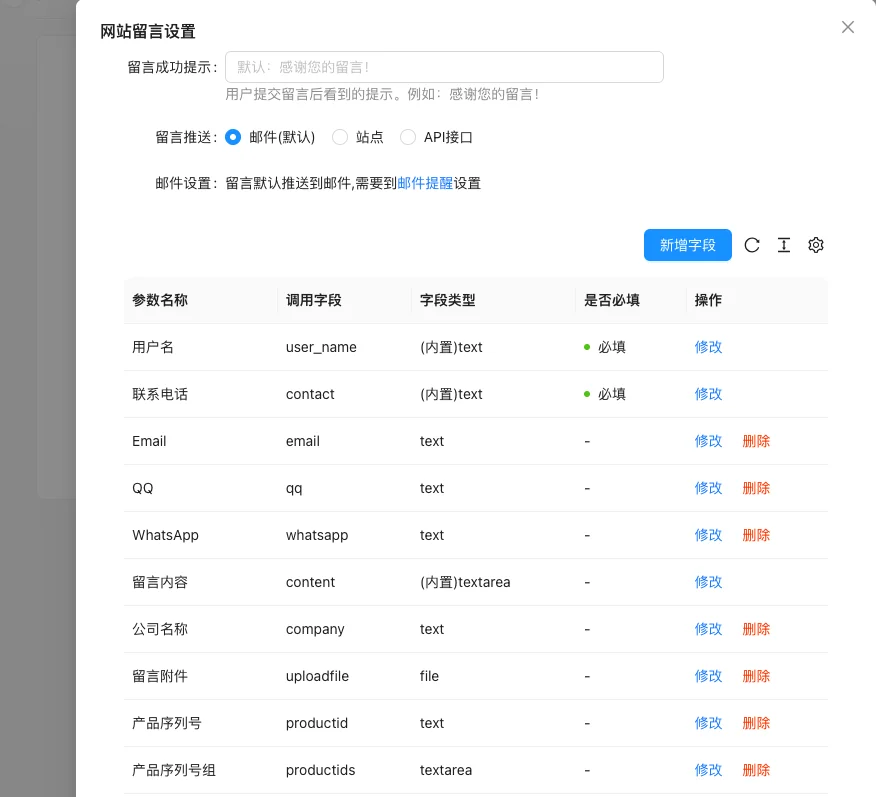
Default fields include:user_name/contact/email/qq/whatsapp/content. If no message fields are configured on the back end, the system will automatically fill in this set of default fields.
Template call:
<form action="/guestbook.html" method="post" enctype="multipart/form-data">
  {% guestbook fields %}
  {% for item in fields %}
    <label>{{ item.Name }}</label>

    {% if item.Type == "text" || item.Type == "number" %}
      <input type="{{ item.Type }}" name="{{ item.FieldName }}" {% if item.Required %}required{% endif %} placeholder="{{ item.Content }}">
    {% elif item.Type == "textarea" %}
      <textarea name="{{ item.FieldName }}" {% if item.Required %}required{% endif %}></textarea>
    {% elif item.Type == "radio" %}
      {% for val in item.Items %}
        <label><input type="radio" name="{{ item.FieldName }}" value="{{ val }}">{{ val }}</label>
      {% endfor %}
    {% elif item.Type == "checkbox" %}
      {% for val in item.Items %}
        <label><input type="checkbox" name="{{ item.FieldName }}[]" value="{{ val }}">{{ val }}</label>
      {% endfor %}
    {% elif item.Type == "select" %}
      <select name="{{ item.FieldName }}">
        {% for val in item.Items %}
          <option value="{{ val }}">{{ val }}</option>
        {% endfor %}
      </select>
    {% elif item.Type == "image" || item.Type == "file" %}
      <input type="file" name="{{ item.FieldName }}" {% if item.Required %}required{% endif %}>
    {% endif %}
  {% endfor %}
  {% endguestbook %}
  <button type="submit">提交</button>
</form>
Note:
- Message fields only support 8 types: single-line text, number, multi-line text, radio, checkbox, dropdown, single image, file.
- When submitting a multi-select field, the field name should be added
[], and the server will merge multiple values into a comma-separated string. - Images and file fields are first uploaded to the attachment library, and then the address is written to the extended data of the message.
- Mandatory verification is executed when the message is submitted, and if it is not filled in, it will return 'XXX is required'.
2.8 Custom template fields (template content settings)
Custom template fields do not belong to any specific content, but are shared across the entire site as key-value pairs, suitable for placing customer service phone numbers, filing numbers, company addresses, unified activity images, etc.
Set the steps:
- Enter 'Design → Template Content Settings'
- Click to add a field, fill in the parameter name, remarks, module group, field type, and default value. The first letter of the parameter name will be automatically capitalized when saved, so it is recommended to use it directly.
SitePhonein this form. - Module groups are used to divide fields into multiple tabs, such as 'Basic Information' and 'Contact Information'.
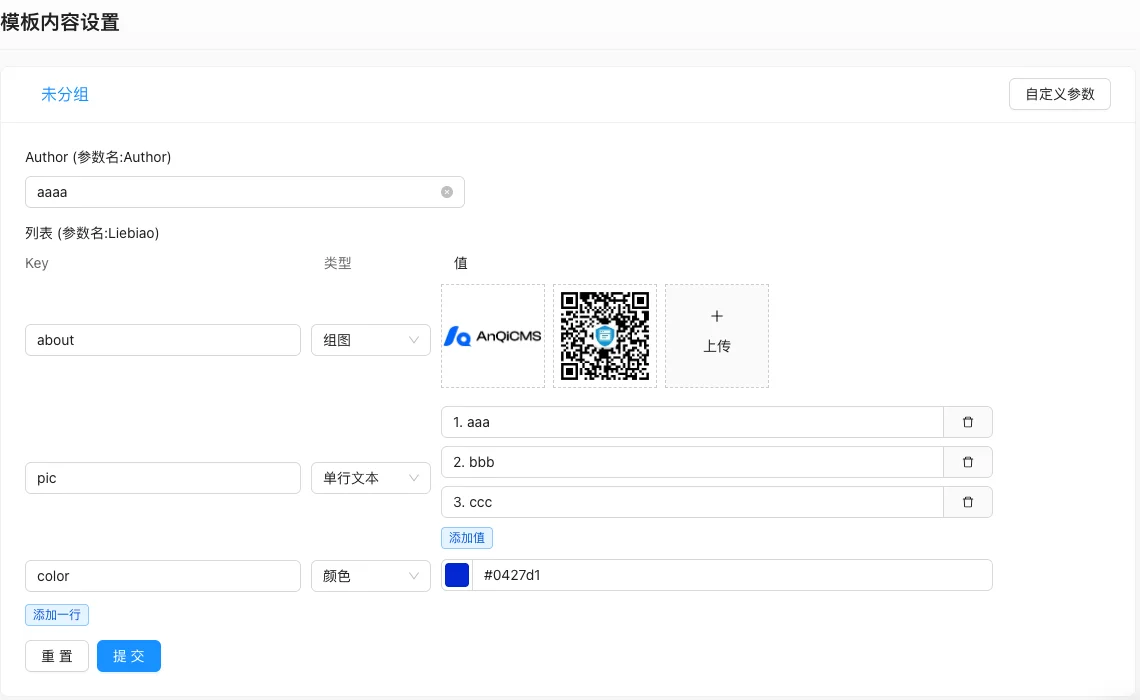
The case of the name when calling the template must be consistent with the background:
{# 输出单个字段 #}
{% diy with name="SitePhone" %}

{# 先赋值再使用 #}
{% diy sitePhone with name="SitePhone" %}
<a href="tel:{{ sitePhone }}">{{ sitePhone }}</a>
Note:
- The template custom fields must be verified
nameSpecify the calling field, do not traverse directly. - Supports 13 types, does not support date, time, datetime, color, and dynamic timeline. Fields of color and other types that already exist in historical data can still be displayed and edited normally.
- If there is no change on the front-end after modifying the field configuration, please clear the cache.
2.9 Custom order field for products
Custom products can require buyers to provide custom information after placing an order, such as engraving content, size, and reference images.
Set the steps:
- Enter 'Product', edit the target product.
- Open 'Custom Order'.
- Add fields and save in 'Custom Order Field Management'.
- After the buyer's payment is successful, the system will guide them into
/order/custom_formFill in the custom information.
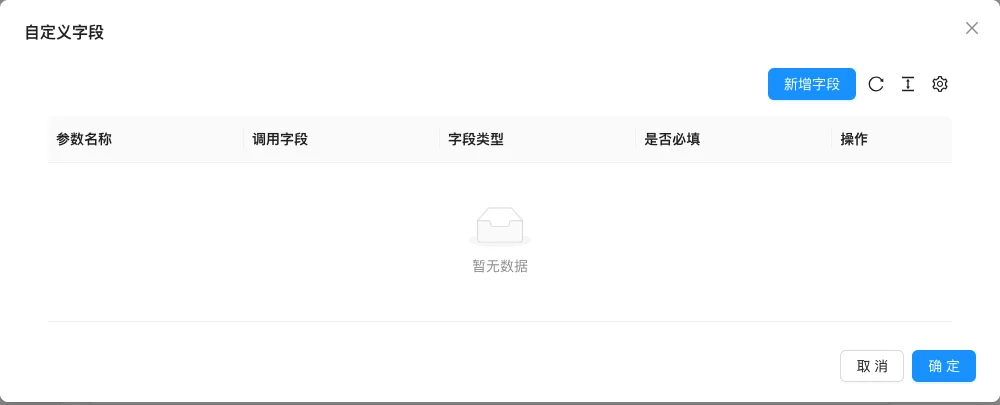
Related interfaces:
GET /api/order/detail: Order details'details[].order_fieldsis field definition,details[].order_extraIs the value already filled in.GET /api/order/custom_form: Get the custom form to be filled in.POST /api/order/custom_form: Submit custom information, the field values are placed in.details[].order_extra.
Note:
- Only when the product type is 'Custom', the order fields will be saved; after switching back to normal products, the existing order field definitions will be cleared.
- Supports 17 types, does not support dynamic timelines.
- The order details read the current product and the field definitions on the order, changing the field name will affect the form display of historical orders, but historical
order_extraold key values will not be renamed automatically.
2.10 Communication order field
Communication customization orders are used for scenarios where the requirements are communicated first and then the quotation is given. The fields are configured in the global settings and are shared by all communication orders.
Set the steps:
- Enter 「Order → Communication Order」.
- Open settings and add fields in 「Custom Order Fields」.
- Buyers fill in these fields when creating communication orders.
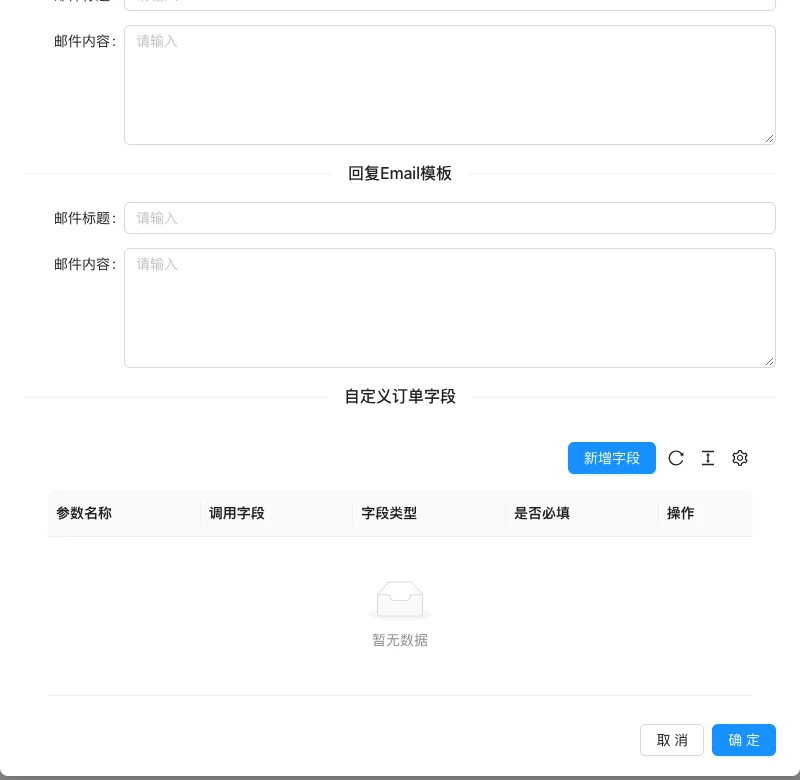
Related interfaces:
GET /api/communication/fields:Get the definition of communication order fields.POST /api/communication/order/create:Create a communication order, place the field values inorder_extra.GET /api/communication/order/detail:Returnorder_fieldsandorder_extra.
Note:
- Supports 17 types, does not support dynamic timelines.
- Field definitions come from the global settings, and after the settings are modified, the forms of all communication orders will change together.
- Mandatory fields are guaranteed by the front-end form and the interface caller, and no mandatory check is performed when saving the field configuration on the back-end.
Detailed Explanation of 18 Field Types
When adding document fields in the background, select the field type as shown in the following figure:
The following examples use the default traversal method of 'document fields':
{% archiveParams params with sorted=true %}
{% for item in params %}
  {{ item.Name }}:{{ item.Value }}
{% endfor %}
{% endarchiveParams %}
If the field is added to the category, tag, city station, or template settings, replace the value label with the correspondingcategoryDetail/tagDetail/placeDetailordiyJust do it.
3.1 Single-line Texttext
Used to save a line of short text, such as author, source, model, number.
Settings: Select 'single-line text' for field type; fill in the default value for 'Default Value / Options', which will also serve as the prompt text for the background input box.
Output: String.
{% archiveDetail with name="author" %}
Applicable scenarios: author, source, brand, model, document number, short label.
Note:
- Document field and user field mapping
varchar(190)Suggested to be controlled within 190 characters. - For phone numbers, ID numbers, and other contents that need to retain leading zeros or non-numeric characters, do not use numeric types. Use single-line text instead and avoid participating in numerical calculations.
- Do not wrap lines. Use multiline text if you need to format multiple lines.
3.2 Numbernumber
Used to save integers, such as years, quantities, areas, and inventory.
Settings: Select 'Number' for field type; fill in the default number for 'Default Value / Options'. The backend uses a numeric input box.
Output: Integer.
{% archiveDetail year with name="year" %}
{% if year > 2020 %}
  较新的内容
{% endif %}
Applicable scenarios: years, quantities, areas, ratings, sorting weights, inventory.
Note:
- Document field and user field mapping
int(10)Only integers are saved, decimals are not supported. - Do not use for phone numbers, postal codes, ID numbers; leading 0s will be lost.
- Numeric fields cannot be set as filter parameters.
3.3 Multiline texttextarea
Used to save multiline plain text, such as addresses, notes, specifications.
Settings: select 'Multiline text' for field type; enter default value or input prompt in 'Default value / Options'.
Output: string with newline characters.
<div style="white-space: pre-wrap">{{ item.Value }}</div>
Applicable scenarios: detailed addresses, notes, after-sales instructions, parameter descriptions, brief introductions.
Note:
- HTML and Markdown are not parsed, line breaks depend on CSS.
white-space: pre-wrapor<pre>reserve. - Please use rich text type when mixing text and images.
3.4 Rich Text / Markdowneditor
Used to save formatted long content.
Settings: Select 'Rich Text' for field type. When the site content editor is set to Markdown, the backend will use the Markdown editor, and the frontend will render Markdown into HTML when reading.
Output: HTML string (andrender=truein Markdown mode), or original text.
{% archiveDetail detail with name="detail" %}
{{ detail|safe }}
Applicable scenarios: product details, graphic introductions, event descriptions, long supplement content.
Note:
- Add when outputting HTML
|safeOtherwise, the escaped tags will be displayed. - Only allow trustworthy administrators to edit this field, to avoid directly outputting the user submitted content as HTML.
- The document field corresponds to this type.
longtextIt has a large capacity, but is not suitable for storing the attachment itself.
3.5 Single selectionradio
Used to select one from a group of options.
Settings: Select 'Single selection' for field type; write one option per line under 'Default value / Option', for example:
现货
预售
缺货
Output: String.
{% if item.Value == "现货" %}
  <span class="in-stock">现货</span>
{% endif %}
Applicable scenarios: status, whether recommended, color, grade, gender, delivery method.
Note:
- The option value is the text that is finally saved, and the old text will be retained if the option text is modified.
- The default value will not be used automatically when nothing is selected.
- It can be set as a filtering parameter, and the options will appear in
archiveFiltersthe filtering criteria.
3.6 Multiple selectioncheckbox
Used to select multiple options from a set of options.
Settings: Select 'multiple selection' as the field type; each option under 'Default value / Option' should be on a separate line.
Backend entry: Select directly in the backend form, pass as an array when submitted; in the message template, the field name needs to include[].
Output: It can be a comma-separated string in English, or an array, depending on the entry point:
- Document field, user field, message field: saved as a comma-separated English string.
- Category, tag, city station, template custom field: usually saved as an array submitted from the background.
{# 文档、用户、留言场景:按逗号拆分 #}
{% for tag in item.Value|split:"," %}
  <span>{{ tag }}</span>
{% endfor %}
Applicable scenarios: applicable population, feature tag, service scope, multiple choice preference.
Note:
- In the document, user, and message scenarios, the template receives a comma-separated string, which will be displayed directly.
A,B,C. - Under category, tag, city station, and template custom field, the template receives an array, which can be used directly.
forLoop. - Can be set as a filter parameter, multiple filter values separated by English commas.
3.7 Dropdown selectionselect
Used to select one from a group of options, similar to radio buttons in terms of interaction, but takes up less space.
Settings: field type select 'Drop-down selection'; 'Default value / option' one option per line.
Output: String.
<p>所属行业:{{ item.Value }}</p>
Applicable scenarios: industry, city, unit, category enumeration, specification.
Note:
- Use drop-down selection when there are many options.
- Can be set as a filter parameter.
- After modifying the option text, the old data will not be updated automatically.
3.8 Single imageimage
Used to save the address of a single image.
Settings: field type select 'Single image'; after uploading the image on the backend, save the attachment path.
Output: image URL in string format.
{% if item.Value %}
  <img src="{{ item.Value }}" alt="{{ item.Name }}">
{% endif %}
Applicable scenarios: cover image, certificate, avatar, store photo, icon.
Note:
- The saved is the attachment address; after switching the storage or domain, the system will complete the storage address when reading.
- The image field only saves one image, for multiple images, please use the collage type.
- Deleting files from the attachment library will cause the front-end image to fail.
3.9 Collageimages
Used to save multiple images, such as galleries, case images, product details.
Settings: field type select 'Collage'; upload multiple images on the backend, support sorting and deletion.
Output: image URL array.
{% for img in item.Value %}
  <img src="{{ img }}" alt="{{ item.Name }}">
{% endfor %}
Applicable scenarios: product gallery, case display, qualification certificate, event site.
Note:
- The output is an array, it cannot be output directly as a string.
- The order of pictures is determined by the backend sorting.
- It is not recommended to put dozens of images in one field, as it may affect the editing experience and page loading.
3.10 Filefile
Used to save the attachment address, such as PDF, manual, download package.
Settings: select 'File' as field type; upload attachments on the backend.
Output: file URL in string format.
{% if item.Value %}
  <a href="{{ item.Value }}" target="_blank" rel="noopener">下载附件</a>
{% endif %}
Applicable scenarios: product manual, quotation sheet, contract template, software installation package.
Note:
- Only save the file address, do not limit the file type, please control the uploaded content yourself.
- It is recommended to use object storage for large files to avoid occupying space on the site server.
- It is recommended to add a front-end download link.
rel="noopener".
3.11 Text listtexts
Used to save a set of repetitive structured entries, such as parameter tables, team members, FAQs, and service items.
Settings: Select 'text list' for field type. The 'default value/options' of the field itself is used to provide options for single choice, multiple choice, and drop-down menus within the entries.
Each entry includes:
| Setting items | function | Value / Default | How to select / Fill in suggestions | Impact / Note |
|---|---|---|---|---|
| key | Entry name, for example, 'material' 'size' | — | Fill in a name that is easy to identify and consistent with the display on the front end | Name changes will affect display and calling, pay attention to synchronization |
| type | Entry type, can be empty, empty values are treated as single-line text. | — | Fill in according to the page prompt and business requirements | Configure according to the actual performance in front |
| value | Single value content | — | Brief description, avoid being vague | Whether to display is determined by the template |
| values | Multiple values, used for multi-line text, multiple choice, and group images | — | Brief description, avoid being vague | Whether to display is determined by the template |
13 types of entries supported: single-line text, number, multi-line text, single choice, multiple choice, dropdown, single image, group image, file, date, time, datetime, color. Rich text, text list, associated documents, associated categories, and dynamic timeline are not supported within entries.
Output: array of entry objects.
{% for row in item.Value %}
  <dt>{{ row.Key }}</dt>
  <dd>
    {% if row.Type == "images" %}
      {% for img in row.Values %}<img src="{{ img }}">{% endfor %}
    {% elif row.Type == "checkbox" %}
      {{ row.Values|join:", " }}
    {% else %}
      {{ row.Value }}
    {% endif %}
  </dd>
{% endfor %}
Applicable scenarios: product parameters, team members, service list, FAQ, specifications table.
Note:
- Single choice, multiple choice, and dropdown fields within the entry share the same set of options from the field configuration, and different options cannot be configured for each entry.
- Dates, time, datetime, and colors will be saved in standard format:
2006-01-02/15:04/2006-01-02 15:04:05/#rrggbb. - Mandatory fields are only checked at the field level, and it is not required for each entry to be filled out.
3.12 Associated documentsarchive
Used to associate one or more other documents, such as related products, recommended reading, and complementary content.
Settings: select 'Associated documents' as the field type; select content through the document selector on the document editing page.
Output: document object array (includingId/Title/Link/Thumband other fields).
{% for arc in item.Value %}
  <a href="{{ arc.Link }}">{{ arc.Title }}</a>
{% endfor %}
Applicable scenarios: related products, recommended reading, complementary materials, case association.
Note:
- The saved is an array of document IDs, which will be converted to document objects when read.
- The document associated with it will automatically become invalid after the associated document is deleted, and no error will be reported.
- In the document details label and document parameters label, you can fill in a document ID as the default value for backup when no selection is made.
3.13 Associated Categorycategory
Used to associate a category, such as the industry, column, or region it belongs to.
Settings: select 'Associated Category' for field type; select a category through the category selector on the editing page.
Output: category object (includingId/Title/Linkand other fields).
{% if item.Value %}
  <a href="{{ item.Value.Link }}">{{ item.Value.Title }}</a>
{% endif %}
Applicable scenarios: industry, column, regional classification, content ownership.
Note:
- The saved is the category ID, and it is converted to a category object when read.
- The category deleted or hidden, the output may be empty, the template needs to be judged first.
- Only one category can be selected, multiple categories should use multiple fields or associated document types.
3.14 Datedate
Used to save dates, such as publication date, event date, establishment date.
Settings: select 'Date' for field type; use date picker on the backend.
Output: string, it is recommended to be unified as.YYYY-MM-DD.
<p>发布日期:{{ item.Value }}</p>
Applicable scenarios: establishment date, event date, deadline, birthday.
Note:
- The saved is a string, not a timestamp, and cannot be used directly.
stampToDate. - The format may vary when written through different entries, it is recommended to be written uniformly by the backend form or interface.
YYYY-MM-DD. - Use the date-time type when you need to be accurate to seconds.
3.15 Timetime
Used to save moments in a day, such as business start time, daily cutoff time.
Settings: select 'Time' for field type; use the time picker on the backend.
Output: string, it is recommended to be unified as.HH:mmorHH:mm:ss.
<p>营业时间:{{ item.Value }}</p>
Applicable scenarios: business hours, shipment cutoff time, reservation period.
Note:
- Only represents a moment, does not include a date.
- Saved as a string, no timezone conversion.
- It is recommended to split the cross-day business hours into start and end time fields.
3.16 Date and Timedatetime
Used to save the complete date and time, such as reservation time, release time, event start time.
Set: Choose the field type 'Date and Time'; the backend uses a date and time selector.
Output: string, it is recommended to be unified as.YYYY-MM-DD HH:mm:ss.
<p>预约时间:{{ item.Value }}</p>
Applicable scenarios: reservation time, event start time, registration deadline, service time.
Note:
- It saves strings, not Unix timestamps.
- Before sorting or comparing by time, make sure all entries are written in a consistent format.
- If you need timestamps, you can convert them on the business side before writing them to the numeric field.
3.17 Colorcolor
Used to save color values, such as theme color, color number, label color.
Set: Choose the field type 'Color'; the backend uses a color selector.
Output: string, usually as#rrggbb.
<span style="color: {{ item.Value }}">彩色文字</span>
Applicable scenarios: theme color, product color number, label color, style configuration.
Note:
- The document field and user field do not perform server-side format validation on color values, and it is recommended to write standard values with the background selector.
- The color type within the text list entry will be verified and standardized to lowercase.
#rrggbb. - Do not directly concatenate color values into inline styles that are not trusted to avoid style injection.
3.18 Dynamic timelinetimeline
Used to save a timeline with sub-items, such as development history, project progress, logistics track, service process.
Settings: select the 'Dynamic timeline' field type. This type is only available in document fields and category fields.
Data structure:
{
  "title": "2026 年",
  "content": "完成新一轮产品升级",
  "status": "已完成",
  "images": ["https://en.anqicms.com/uploads/2026/a.jpg"],
  "extra": { "负责人": "张三" },
  "items": [
    {
      "title": "**阶段",
      "content": "需求调研",
      "status": "已完成",
      "images": [],
      "extra": {},
      "items": []
    }
  ]
}
Output: Timeline object.
<h3>{{ item.Value.Title }}</h3>
<p>{{ item.Value.Content }}</p>
<span>{{ item.Value.Status }}</span>

{% for img in item.Value.Images %}
  <img src="{{ img }}" alt="{{ item.Value.Title }}">
{% endfor %}

{% for key, val in item.Value.Extra %}
  <p>{{ key }}:{{ val }}</p>
{% endfor %}

{% for sub in item.Value.Items %}
  <p>{{ sub.Title }} - {{ sub.Status }}</p>
{% endfor %}
Applicable scenarios: Development history, project milestones, logistics track, service process, version records.
Note:
- Dynamic timeline is saved in JSON format, and cannot be used as a filter parameter.
- The sub-item structure is consistent with the top-level structure, can be nested further, but it is recommended to control the display on the front-end within two layers.
- Timeline is only suitable for document fields and classification fields, there is no such type in other locations.
Chapter 4: Template Quick Reference
4.1 Ways to retrieve values from different locations
| Setting items | function | Value / Default | How to select / Fill in suggestions | Impact / Note |
|---|---|---|---|---|
| Document | {% archiveDetail with name="author" %} |
{% archiveParams params %}...{% endarchiveParams %} |
Fill in according to the page prompt and business requirements | Configure according to the actual performance in front |
| Category | {% categoryDetail with name="industry" %} |
{% categoryDetail extras with name="extra" %}Post-loopextras |
Select according to the actual business scope, multiple selections are allowed | The selection range determines the content ownership and display. |
| Tag | {% tagDetail with name="brand_story" %} |
{% tagDetail extras with name="extra" %}Post-loopextras |
Fill in according to the page prompt and business requirements | Configure according to the actual performance in front |
| a user | {% userDetail with name="company" %} |
There is no unified traversal label, read field names one by one | Fill in according to the page prompt and business requirements | Configure according to the actual performance in front |
| City station | {% placeDetail with name="phone" %} |
{% placeDetail extras with name="extra" %}Post-loopextras |
Fill in according to the page prompt and business requirements | Configure according to the actual performance in front |
| Leave a message | PressfieldsLoop |
{% guestbook fields %}...{% endguestbook %} |
Fill in according to the page prompt and business requirements | Configure according to the actual performance in front |
| Template customization | {% diy with name="SitePhone" %} |
No traversal label, read field names one by one | Fill in according to the page prompt and business requirements | Configure according to the actual performance in front |
4.2 Field list in the document
{% archiveList archives with moduleId=1 showExtra=true limit="10" %}
{% for archive in archives %}
  <h3>{{ archive.Title }}</h3>
  <p>{{ archive.Extra.author.Value }}</p>
{% endfor %}
{% endarchiveList %}
4.3 Default value judgment
Other than single selection, multiple selection, and dropdown, the system will fill in the default value if it is not filled in. The template can directly judge:
{% if item.Value %}
  {{ item.Value }}
{% else %}
  未填写
{% endif %}
4.4 Interface output difference
| Setting items | function | Value / Default | How to select / Fill in suggestions | Impact / Note |
|---|---|---|---|---|
/api/archive/detail |
data.extra.{调用字段}.value |
— | Fill in according to the page prompt and business requirements | Configure according to the actual performance in front |
/api/archive/list |
PlusshowExtra=1Afterdata[].extra.{调用字段}.value |
— | Fill in according to the page prompt and business requirements | Configure according to the actual performance in front |
/api/user/detail |
data.extra.{调用字段}.value |
— | Fill in according to the page prompt and business requirements | Configure according to the actual performance in front |
/api/category/detail |
data.extra.{调用字段}Directly is a value |
— | Fill in according to the page prompt and business requirements | Configure according to the actual performance in front |
/api/tag/detail |
data.extra.{调用字段}Directly is a value |
— | Fill in according to the page prompt and business requirements | Configure according to the actual performance in front |
/api/place/detail |
data.extra.{调用字段}Directly is a value |
— | Fill in according to the page prompt and business requirements | Configure according to the actual performance in front |
/api/order/detail |
data.details[].order_fieldsIs defined,order_extraIs a value |
— | Fill in according to the page prompt and business requirements | Configure according to the actual performance in front |
/api/communication/order/detail |
data.order_fieldsIs defined,order_extraIs a value |
— | Fill in according to the page prompt and business requirements | Configure according to the actual performance in front |
Five, common questions and precautions
5.1 The front-end does not display the field
Check in order:
- Is the field added to the correct model or location.
- Has the document or record really filled in the value; single selection, multiple selection, and drop-down lists will not automatically fill in the default value.
- Is the field enabled to 'follow the document reading level', has the current user purchased or reached the level?
- Has the document list added
showExtra=true. - Did the cache get cleared after the template was modified?
Error with field name 5.2
Common errors:
XXX 已存在: The field call conflicts with the system column or other fields at the same position, and the scope of checks varies slightly at different positions.XXX 命名错误: The field call does not start with a lowercase letter, or contains uppercase letters, Chinese characters, dashes, and other illegal characters.
It is recommended to use lowercase English letters and underscores for field calls, for exampleproduct_material/company_name.
Data anomaly after field type modification 5.3
The type of document field and user field is bound to the database column. The backend prohibits modifying the field and type after the field is created; if the restriction is bypassed through the database or interface, old data may not be parsed according to the new type.
Categories, tags, city stations, messages, template content settings, and order fields are saved using JSON, and the backend may allow modifying the type, but the old values will not be automatically converted. For example, changing a single-line text to a number will cause the originally entered 'about 30 days' to be unable to be parsed as a number.
When changing the type, it is recommended to add a new field and delete the old field after the data migration is completed.
5.4 Delete field
- Document field: Delete the corresponding column of the model table, the column data is lost.
- User field: Delete
usersTable corresponding column, column data is lost. - Other locations: Only delete field configuration, the old values in the historical JSON are still there, but no longer displayed.
Please back up the database before deleting.
5.5 The format of the multi-select value is inconsistent.
The multi-select field may output a string or an array at different locations:
- Documents, users, comments: comma-separated English strings.
- Categories, tags, city stations, template customization: arrays.
Please process according to the actual storage location in the template, do not use the same template for all locations.
5.6 The filter does not work
作为筛选参数The following conditions must be met at the same time:
- The field is added in the 'Document Custom Fields' instead of the category field or other locations.
- The field type is single selection, multiple selection, or dropdown.
- The field has not enabled 'Follow Document Reading Level'.
- The field options indeed have configured optional values.
- The URL parameter name on the list page is consistent with the called field.
5.7 Image or file address is invalid
The image and file fields save the attachment address. The following situations will cause the address to fail:
- The original file was deleted from the attachment library.
- Changed the storage method but did not migrate the files.
- Modified the site domain, but the template used a hardcoded old domain.
The system will complete the address according to the current storage configuration when reading, but it is still recommended to keep the original attachments.
5.8 Modified the field but there was no change on the front-end.
The field configuration may be cached. After saving the model, template custom fields, or comment settings, if the front-end still displays old content, please clear the site cache and refresh the page.
Six, Quick Selection Suggestions
| Requirement | Recommended Type |
|---|---|
| Author, Source, Model | Single-line text |
| Year, Quantity, Inventory | Number |
| Address, Remarks, Description | Multi-line text |
| Details with images | Rich text / Markdown |
| Status, level, yes/no | Single choice |
| Multiple tags, applicable audience | Multiple choice |
| Industry, city, unit | Drop-down selection |
| Cover, certificate, avatar | Single image |
| Gallery, case images | group images |
| PDF, manual, installation package | File |
| specification table, FAQ, team list | text list |
| related products, recommended reading | related documents |
| industry, category | related categories |
| establishment date, event date | Date |
| business hours, cutoff time | Time |
| reservation time, registration deadline | Date and Time |
| Theme Color, Color Number | color |
| Development History, Project Progress | Dynamic Timeline |