
User management
User management
User management is used to view and maintain site members, including phone numbers, emails, balances, user groups, and statuses, and provides user additional field settings.
Entry Path
Top menu of the backend → 「Function」→「User/Transaction」→「User Management」. Actual address:/system/plugin/commerce/userrequires administrative privileges(canAdmin)
Function description
The page supports filtering by user ID and username, and viewing by categories such as 「All Customers/Subscribed Customers/Purchased Customers/Repeat Customers」, adding users, and maintaining additional user fields.
Screenshot of the interface
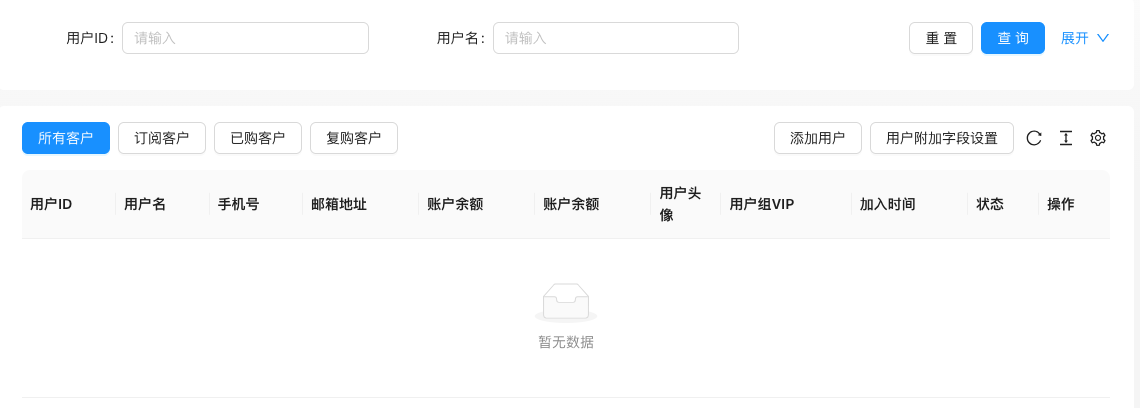
The screenshot is from the demonstration environment, the table may be in an empty data state; the position of the fields and the operation entry should be based on the current backend interface.
List field description
| field | Meaning | Value or source | Impact on the operation |
|---|---|---|---|
| User ID / Username | User **ID and Login Name | Back-end record, read-only | Used for identification and filtering, cannot be directly edited |
| Phone Number / Email Address | User Contact Information | Back-end record, read-only | Used for identification and filtering, cannot be directly edited |
| Account Balance | User Available Balance | Back-end record, read-only | Used for identification and filtering, cannot be directly edited |
| User avatar | Profile Picture | Back-end record, read-only | Used for identification and filtering, cannot be directly edited |
| VIP user group | User Level Group | Back-end record, read-only | Used for identification and filtering, cannot be directly edited |
| Join Time | Registration Time | Back-end record, read-only | Used for identification and filtering, cannot be directly edited |
| Status | Normal / Disabled | Back-end record, read-only | Used for identification and filtering, cannot be directly edited |
| using | Value / Default | How to select / Fill in suggestions | Impact / Note |
| :— | :— | :— | :— |
| User ID / Username | User **ID and Login Name | — | System Generated or as Required by Platform |
| Phone Number / Email Address | User Contact Information | — | Enter real and valid information, the format must meet the platform requirements |
| Account Balance | User Available Balance | — | Fill in according to the page prompt and business requirements |
| User avatar | Profile Picture | — | Upload according to the size and proportion required by the template |
| VIP user group | User Level Group | — | Enter real and valid information, the format must meet the platform requirements |
| Join Time | Registration Time | — | Set according to the business rhythm, refer to the default value |
| Status | Normal / Disabled | — | Enable or disable according to business needs |
Operation steps
- Enter 「Function → User/Transaction → User Management」.
- Search for users using filter conditions or customer categories
- Click 'Add User' to create a background user or click a specific user to edit their profile
- Click 'User Additional Field Settings' to maintain user extended fields
Applicable scenarios and suggestions
- The member data of the mall site is managed here,配合 user group VIP for differentiated rights and interests
- User additional fields are real database columns, see the tutorial for custom field configuration
Front-end call example
{% userDetail with name="UserName" %}
{% userDetail with name="Balance" %}
User group information throughuserGroupDetailLabel read.
Points to note
- The list contains personal information such as phone numbers, emails, etc., and attention should be paid to privacy protection when capturing and exporting.
- Do not arbitrarily rename the calling fields of the user's additional fields; the old data will not be migrated after renaming.
- After disabling a user, they will not be able to log in, but historical order data will be retained.