
VIP user group
VIP user group
User group VIP is used to define member levels,配合 mall and template to achieve differentiated rights and interests.
Entry Path
Top menu →「Function」→「User/Transaction」→「User Group VIP」。Actual address:/system/plugin/commerce/grouprequires administrative privileges(canAdmin)
Function description
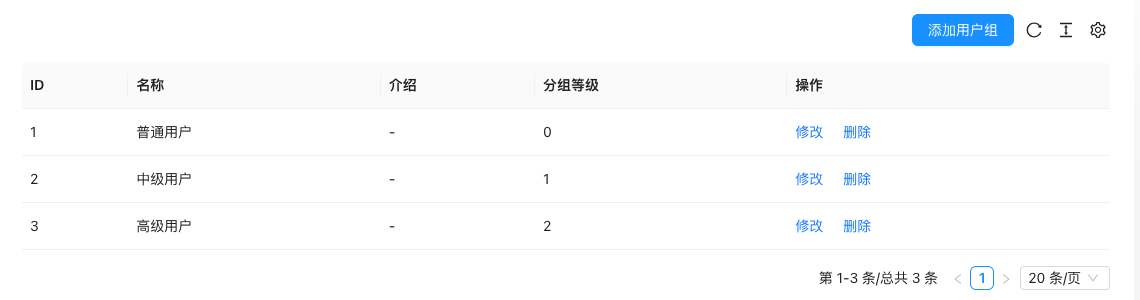
The page lists the ID, name, introduction, and group level of user groups, supports adding, modifying, and deleting. The system has three built-in groups: ordinary users, intermediate users, and senior users.
Screenshot of the interface
Setting item description
| Setting items | function | Value / Default | How to select / Fill in suggestions | Impact / Note |
|---|---|---|---|---|
| name | User group name | Text, No Default [Source Code] | Such as「VIP Gold Member」 | — |
| Introduction | Level description | Text field, no default [source code] | Write clear rights | — |
| Group Level | Level value | Number, the higher the better [Source code] | Leave space for inserting new levels | — |
| User group price | Price to open this level | Amount, unit in cents [source code] | Set according to operational strategy | — |
| User group validity period | Member validity period | Amount, unit in days [source code] | Set monthly/yearly | — |
| Comments/content unreviewed | Whether the content published by this group is unreviewed | checkbox [source code] | Only open for high-level groups trusted | The risk of rule violations will increase without review |
| Comments/content without captcha verification | Is captcha verification optional | checkbox [source code] | Balance between experience and safety | — |
| Columns available for submission | Categories available for submission in this group | Multi-select, supports full selection [Source code] | Distribute by permission | Prohibit submission when loading fails to avoid losing permissions |
| User sharing commission / invitation reward | Distribution related ratio | Number %, recommended 5%-20% / 1%-5% [source code] | Set according to distribution strategy | — |
| User sharing discount / discount / freight discount | Member discount ratio | Number %, recommended 90%-100% [source code] | The lower the value, the greater the discount | — |
Detailed explanation of configuration items
Columns available for submission
Condition for occurrence: When editing the user group [source code].
Set in a multiple selection manner, the 'select all' status is derived from the current value; if the column fails to load, the interface will block submission to avoid accidental clearing of permissions [source code].
Recommended value: Gradually open columns according to levels, limiting the submission range of low-level groups.
Consequences of filling in incorrectly: Clearing the column for submission will cause the group of users to be unable to submit.
Operation steps
- Enter 'Function → User/Transaction → User Group VIP'.
- Click 'Add User Group' to create a new level.
- Set the name, level, price, validity period, and benefits.
- Go to User Management to assign users to the corresponding group.
Operation steps
- Enter 'Function → User/Transaction → User Group VIP'.
- Click 'Add User Group' to create a new level.
- Set the name, introduction, and group level.
- Go to User Management to assign users to the corresponding group.
Applicable scenarios and suggestions
- Use group levels to distinguish between ordinary members and VIP, with discounts or exclusive prices.
- The level numbers should leave some space for expansion, making it easy to insert intermediate levels later.
Front-end call example
{% userGroupDetail with name="Title" id="1" %}
The specific available fields should be based on the template label manual.
Points to note
- Delete the user group first and confirm that there are no users in the group, otherwise these users will lose their grouping.
- The rights of the group itself require coordination with templates and mall configurations, creating a group does not mean it will take effect automatically.