
Single page management
📅 November 21, 2026
👁️ 0
Single page management
Single page management is used to create independent pages such as 'Company Introduction' and 'Contact Us', and maintain names, SEO information, URL aliases, and content.
Entry Path
Top menu of the backend → 'Content' → 'Single Page Management'. Actual address:/system/archive/pagerequires administrative privileges(canAdmin)
Function description
The page lists all single pages and their sorting, templates, and display status, supports adding, modifying, and deleting. Single pages use independent detail templates and are not dependent on categories.
Screenshot of the interface
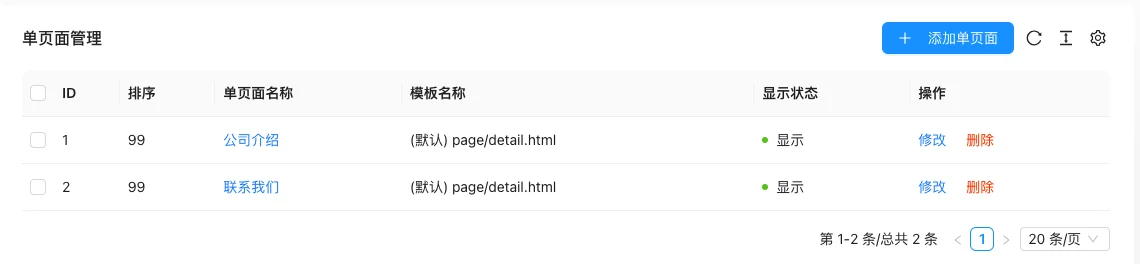
List field description
| field | Meaning | Value or source | Impact on the operation |
|---|---|---|---|
| ID / Sorting | Page number and sorting value | Back-end record, read-only | Used for identification and filtering, cannot be directly edited |
| Single page name | Front-end display name | Back-end record, read-only | Used for identification and filtering, cannot be directly edited |
| Template Name | The page template used, default aspage/detail.html |
Back-end record, read-only | Used for identification and filtering, cannot be directly edited |
| Display Status | Show / Hide | Back-end record, read-only | Used for identification and filtering, cannot be directly edited |
| Operation | Modify / Delete | Back-end record, read-only | Used for identification and filtering, cannot be directly edited |
| Meaning | |||
| :— | :— | ||
| ID / Sorting | Page number and sorting value | ||
| Single page name | Front-end display name | ||
| Template Name | The page template used, default aspage/detail.html |
||
| Display Status | Show / Hide | ||
| Operation | Modify / Delete |
Form field description
| Setting items | function | Points to note |
|---|---|---|
| Page Name | Front-end display name | — |
| SEO title | Override page<title> |
Leave blank to use page name |
| Keywords | Page keywords | Separate multiple with English commas |
| Introduction | Page Description | — |
| Custom URL | Link alias under naming pattern static | Default to generate pinyin by name; must** |
| Main text | Page content | Supports the current default editor |
Operation steps
- Enter 「Content → Single Page Management」.
- Click 「Add Single Page」,fill in the name and content.
- Set SEO title and custom URL as needed.
- After saving, visit the corresponding link on the front end to confirm.
Applicable scenarios and suggestions
- Content that does not change often (such as 'About Us' and contact information) is suitable for a single page rather than a document.
- It is recommended to manually fill in a short English URL for custom URLs, which is convenient for memory and sharing.
Front-end call example
{% pageList pages with type="list" %}
  {% for item in pages %}
    <a href="{{ item.Link }}">{{ item.Title }}</a>
  {% endfor %}
{% endpageList %}

{% pageDetail with name="Content" %}
pageDetailCan also be readTitle/Keywords/Descriptionfields.
Points to note
- Custom URL must**, if repeated, the system will add random numbers at the end.
- Custom URL is only enabled
{filename}/{catname}This kind of naming pattern pseudo-static rules take effect. - After the hidden page, the front-end access to this link is usually unable to open.
Related documents
- Document List
- Management of Static Rule
- template tag manual.
pageList/pageDetail