
Automatic title image matching
Automatic title image matching
Title Auto Image Generation is used to automatically generate a thumbnail image containing the document title when there is no image in the document.
Entry Path
Top menu of background → 'Function' → 'Content Production' → 'Title Auto Image'. Actual address:/system/plugin/contentops/titleimagerequires administrative privileges(canAdmin)
Function description
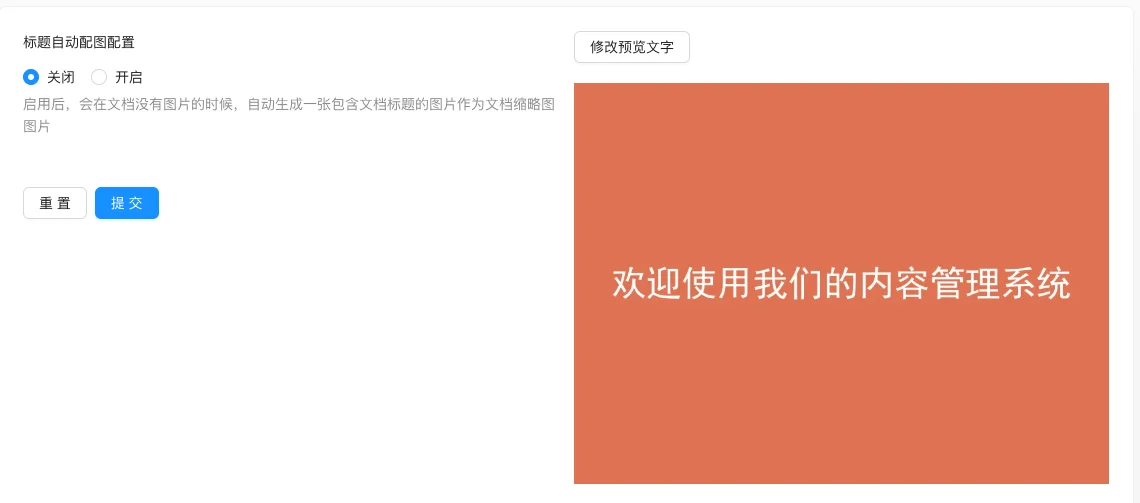
The page provides an on/off switch, preview text modification entry. After turning on, the system will automatically generate a title image for documents without images.
Screenshot of the interface
Setting item description
| Setting items | function | Value / Default | How to select / Fill in suggestions | Impact / Note |
|---|---|---|---|---|
| Title Auto Image Configuration | Master switch | radio: Off (default) / On [实测] | Turn on when original content needs a thumbnail | Fields below will not be displayed after disabling |
| Whether to generate document secondary title image | Whether to generate an image for the secondary title as well | radio: Off (default) / On [实测] | Generally keep it closed | — |
| Default text size | Title size on the generated image | Number, default 32 [measured];source code comments default 32 [source code] | Adjust according to image width | — |
| Add interference spots | Whether to add interference points to the image | Radio: Do not add (default measured) / Add [measured] | Generally keep it without adding | — |
| Custom background / font | Background and font of the illustration | Image/font upload, no default [source code] | Set according to brand style | — |
Detailed explanation of configuration items
Scope of effect
Condition for occurrenceAfter enabling [source code] it will take effect.
Automatically generate a thumbnail image as a title for documents without images, documents with existing thumbnails will not be overwritten [source code+i18n].
Select suggestionsEnabling this for content-based sites can avoid blank images in lists; sites with sufficient image resources can be turned off.
Consequences of filling in incorrectlyAfter enabling, it only takes effect for new/blank images documents, existing blank image documents need to be handled separately.
Operation steps
- Go to 'Function → Content Production → Automatic Title Image Matching'.
- Configure text size, background, and font.
- Set 'Automatic Title Image Configuration' to 'Enabled'.
- Click 'Submit' to save and create a new blank document to verify the effect.
Operation steps
- Go to 'Function → Content Production → Automatic Title Image Matching'.
- Set the switch to 'On'.
- Click 'Modify Preview Text' to confirm the display effect.
- Click 'Submit' to save.
Applicable scenarios and suggestions
- Enable when the article has no image and a list thumbnail is needed to avoid blank lists.
- The text style of the generated image should be consistent with the site style.
Points to note
- Only documents without images are effective, documents with existing thumbnails will not be overwritten.
- Only new documents published after enabling will be automatically generated, existing documents need to be handled separately.