
Email subscription
📅 November 21, 2026
👁️ 0
Email subscription
Email Subscription is used to maintain a list of subscribed users and send batch subscription emails.
Entry Path
Top menu of the background → Function → Contact Channels → Email Subscription. Actual address:/system/plugin/channel/subscriptionrequires administrative privileges(canAdmin)
Function description
The page supports filtering subscribers by category, adding subscribers, and sending emails. List displays ID, creation time, email, remarks, status, number of sends/error attempts.
Screenshot of the interface
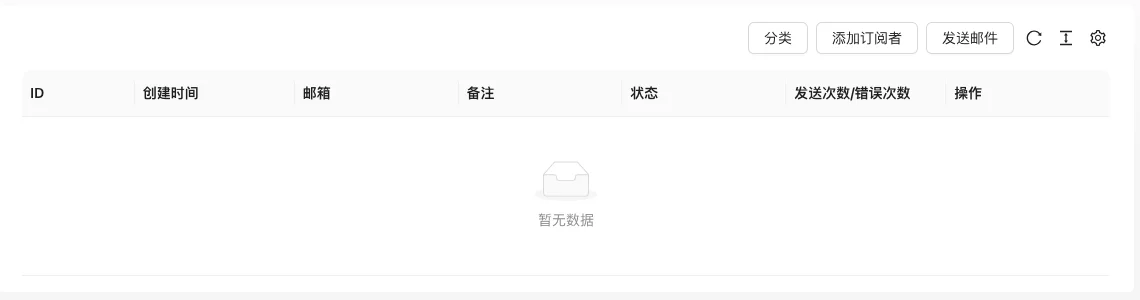
The screenshot is from the demonstration environment, the table may be in an empty data state; the position of the fields and the operation entry should be based on the current backend interface.
Setting item description
| Setting items | function | Value / Default | How to select / Fill in suggestions | Impact / Note |
|---|---|---|---|---|
| ID / Creation Time | Subscription record identifier and time | — | Set according to business rhythm, refer to default values | Setting it too short may affect the experience, and it may fail if it's too long. |
| Subscriber email | — | Enter real and valid information, the format must meet the platform requirements | Contains personal information, be careful to desensitize when exporting and screenshot | |
| Note | Background remarks information | — | Brief description, avoid being vague | Whether to display is determined by the template |
| Status | Confirmed / Unconfirmed, etc. | — | Enable or disable according to business needs | Status change immediately affects availability |
| Number of sends/error attempts | Email delivery statistics | — | Manually execute or configure an automatic strategy as needed | Check the log to locate the cause when it fails |
| Operation | Edit, delete, and send emails | — | Manually execute or configure an automatic strategy as needed | Check the log to locate the cause when it fails |
Operation steps
- Enter 'Function → Reach Channel → Email Subscription.'
- Click 'Add Subscriber' to enter the email address, or wait for users to submit subscription from the front desk.
- Filter target users by category
- Click 'Send Email' to execute mass distribution and view the number of errors.
Applicable scenarios and suggestions
- Coordinate with the 'Email Subscription Confirmation' in the email reminder to ensure the subscriber's email is valid.
- Test in small batches before mass distribution to avoid being flagged as spam.
Points to note
- Subscription emails are personal information, pay attention to desensitization when exporting and screenshotting.
- Subscribers with a high number of errors should clean or verify the email validity.
Related documents
- Email reminder
- Channel of Contact